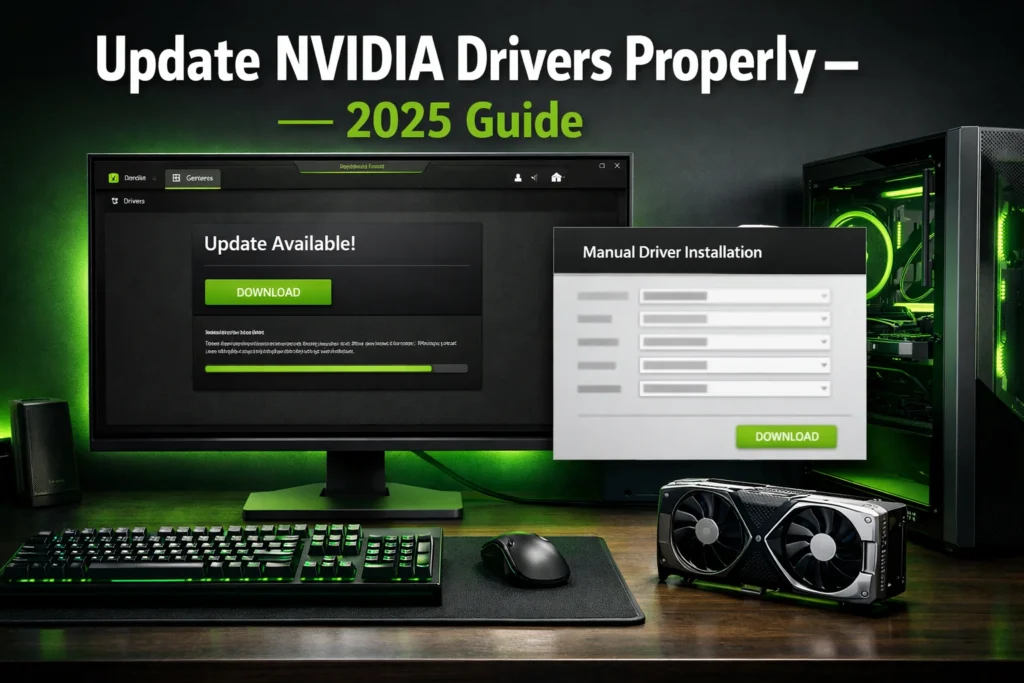

Your graphics processing unit (GPU) is the heart of your visual experience, whether you are rendering a 3D masterpiece or competing in a high stakes battle royale. However, hardware is only as good as the software commanding it. Learning how to update Nvidia drivers properly is the single most effective way to eliminate blue screens boost your frame rates, and ensure your system remains secure.
This guide provides a comprehensive walkthrough of the two primary update methods, alongside the “clean install” protocol favored by enthusiasts and professionals.
Updating via NVIDIA GeForce Experience The Automatic Way
For most users, NVIDIA GeForce Experience (GFE) is the most convenient tool. It acts as a bridge between your hardware and the latest software releases from NVIDIA.
Setting Up Automatic Notifications
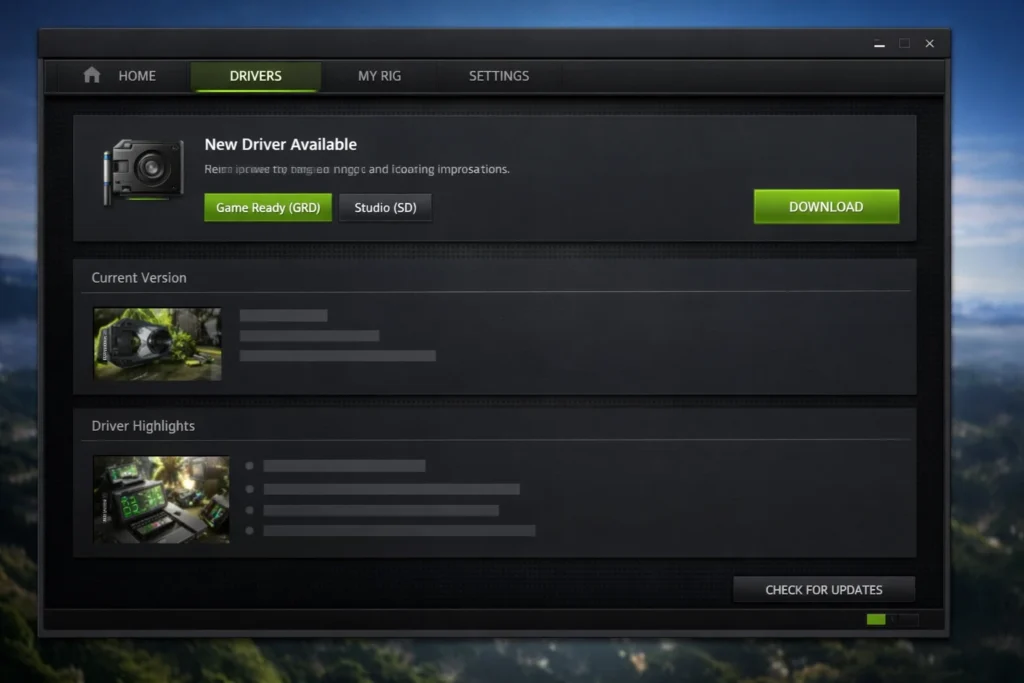
Once GFE is installed, it sits in your system tray. By default, it will notify you when a new driver is available. To ensure this is active, open the app, click the Settings (gear icon), and under the “General” tab, ensure “Keep my drivers up to date” is checked. This ensures you never miss a critical security patch.
Choosing Between Game Ready and Studio Drivers
NVIDIA offers two distinct “branches” of software. Game Ready Drivers (GRD) are optimized for the latest titles and day one releases. If you are a gamer, this is your default choice. Studio Drivers (SD), however, prioritize stability for applications like Premiere Pro, Blender, and AutoCAD. You can switch between these by clicking the three dots next to “Check for Updates” in the GFE Drivers tab.
The Express vs Custom Installation Choice
When the download finishes, you are met with two buttons. Express Installation is fast but keeps all your current settings. Custom Installation is superior for those experiencing glitches, as it allows you to select “Perform a clean installation,” which wipes old profiles and starts fresh.
Manual Driver Installation The Professional Choice
Many power users prefer the manual method because it avoids the need for an NVIDIA account and keeps “telemetry” background processes to a minimum.
For total control over your system, avoid third-party sites and always download your software directly from the official NVIDIA Driver Downloads page. This ensures you are getting the most recent WHQL-certified version specifically for your hardware architecture
How to Identify Your Exact GPU Model
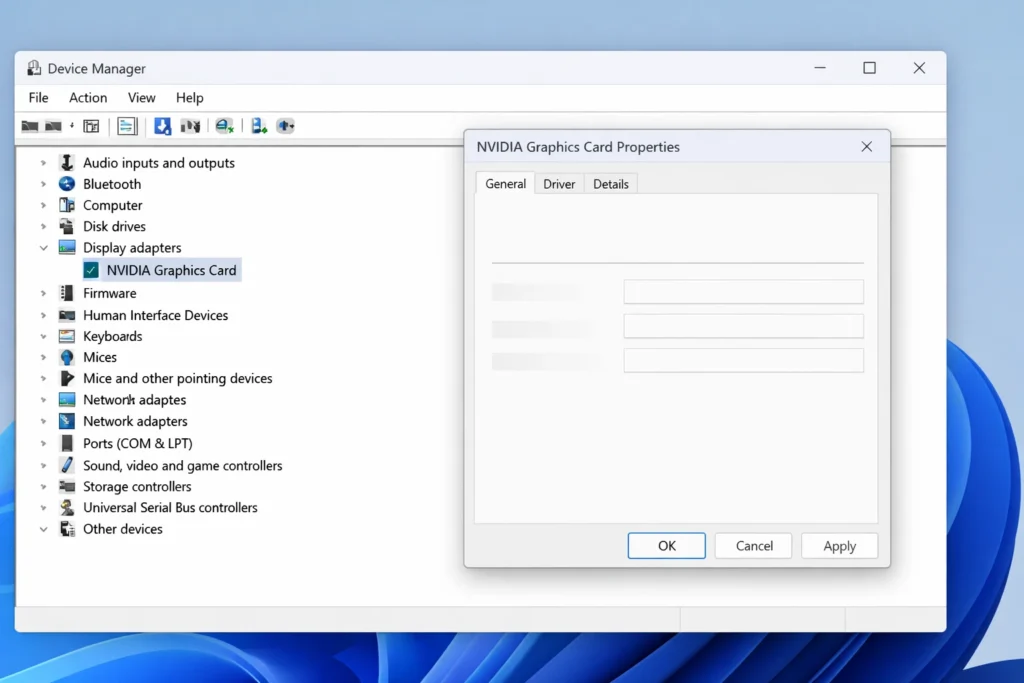
Before downloading a file, you must know your hardware. Right click the Start button and select Device Manager. Expand the Display adapters section. Here, you will see your specific model, such as the “NVIDIA GeForce RTX 3080.” Take note of whether you are on a laptop (Notebook) or desktop, as the drivers are different.
Navigating the NVIDIA Advanced Driver Search
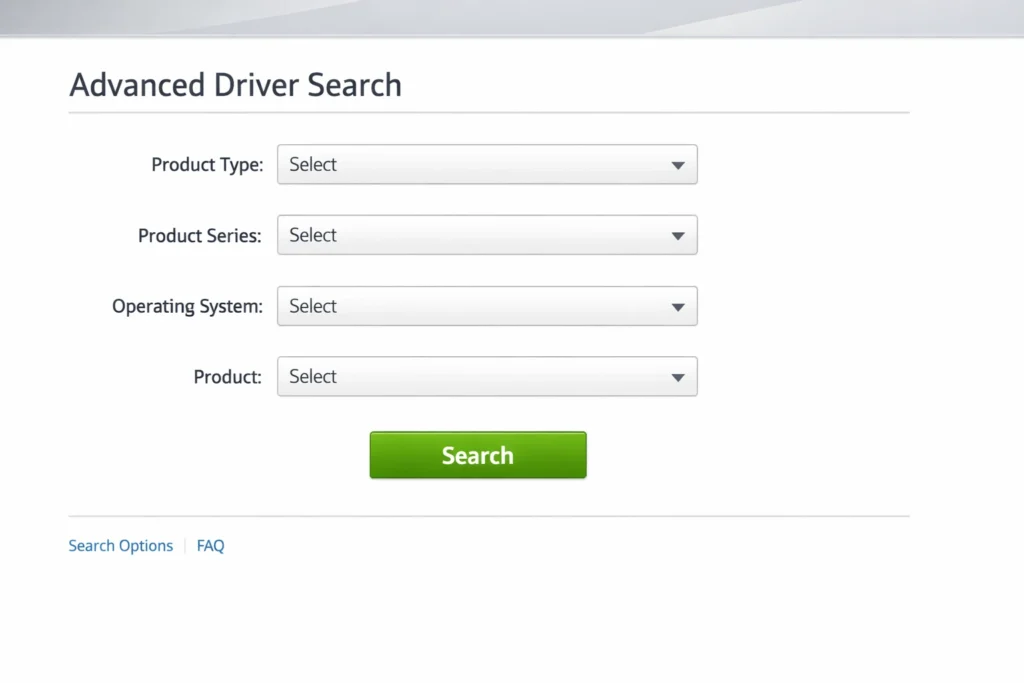
Head to the official NVIDIA Driver Downloads page. Use the dropdown menus to select your Product Type, Series, and Operating System. Always look for the WHQL (Windows Hardware Quality Labs) certification. This tag ensures the driver has been tested for stability by Microsoft.
Running the Installer Without Extra Bloatware
When you run the downloaded .exe file, you can choose to install “NVIDIA Graphics Driver” without “GeForce Experience.” This is ideal for users who want a lean system and don’t need the overlay or game recording features.
When and How to Use Display Driver Uninstaller DDU
Sometimes, a simple update isn’t enough. If you are switching from AMD to NVIDIA, or if your drivers are constantly crashing, you need a “nuclear” option.
Why Standard Uninstallers Often Fail
The default Windows uninstaller often leaves behind registry keys and stray DLL files. These “ghost” files can conflict with new installations, leading to stuttering or the dreaded “NVIDIA Installer Failed” error.
Step by Step Guide to a “Nuclear” Clean Install
- Download DDU from Wagnardsoft.
- Disconnect your internet (this prevents Windows Update from auto installing a generic driver).
- Boot into Safe Mode.
- Run DDU and select “Clean and restart.”
- Once back in normal Windows, run your manually downloaded NVIDIA driver.
Troubleshooting Common NVIDIA Installation Errors
Even with the best intentions, things can go wrong. The most common hurdle is the “NVIDIA Installer Cannot Continue” message. This is often caused by a Windows Update running in the background or a mismatch between the driver and your Windows version (e.g., trying to install a 64 bit driver on a 32 bit system).
If you encounter a black screen that persists for more than 10 minutes, your display signal may have hung. Unplugging and re plugging your HDMI or DisplayPort cable often forces the GPU to handshake with the monitor again.
When Software Updates Arenot Enough Checking Hardware Health
While most graphical glitches are solved by a clean driver install, drivers cannot fix a mechanical failure. If you notice your GPU temperatures rising above 85°C even after a “Clean Installation,” your fans may be the culprit.
If your card is running hot but you don’t hear any fan noise, your update might have conflicted with a custom fan curve, or the hardware itself might be failing. In these cases, follow our GPU Fan Not Working Repair Guide to diagnose if you need a physical cleaning or a fan replacement.
How to Roll Back to a Previous Stable Version
If the latest update causes issues, you can roll back. Go to Device Manager > Display Adapters > [Your GPU] > Properties > Driver > Roll Back Driver. If that button is greyed out, you will need to manually install the previous version from the NVIDIA archive.
Mobile GPU Optimization Updating NVIDIA Drivers on Laptops
Updating a laptop is fundamentally different from a desktop. Most laptops use NVIDIA Optimus technology, which switches between your integrated Intel/AMD graphics and your powerful NVIDIA GPU.
The Manufacturer vs NVIDIA Dilemma
Should you download drivers from Dell/ASUS or from NVIDIA? Generally, the laptop manufacturer (OEM) provides “validated” drivers that are tested for your specific thermal profile. However, these are often months out of date. If you want to play the newest games, you should use the NVIDIA generic drivers, but ensure you have the Intel/AMD integrated drivers updated first to prevent “black screen” switching issues.
Max Q and Laptop Power Limits
If your laptop features a Max Q design, your driver works in tandem with “Dynamic Boost.” When you update, ensure you also update your BIOS and NVIDIA FrameView tools. This allows the driver to properly shift power from your CPU to your GPU when the game demands it.
The Silent Method Installing Drivers via Command Line CLI
For IT professionals or users who hate graphical installers, NVIDIA drivers can be installed via the Windows Command Prompt or PowerShell.
Why use the CLI
The CLI allows for a “Silent Install,” meaning no windows pop up, and no bloatware is added.
- Open PowerShell as Administrator.
- Navigate to your download folder.
- Run the command: ./NVIDIA-Driver-File.exe /s /noreboot /clean. This command forces a Silent (/s) installation, skips the Reboot (/noreboot), and performs a Clean (/clean) wipe.
NVIDIA Drivers on Linux A Different Beast
If you are a Steam Deck user (running Windows) or a Linux enthusiast, the “proper” update method changes entirely. You don’t download an .exe.
Using Repository (PPA) vs. .Run Files
On Ubuntu or Mint, you should avoid the .run files from NVIDIA’s site. Instead, use the Software & Updates tool or the terminal command sudo ubuntu-drivers autoinstall. This ensures the driver is “DKMS” enabled, meaning it won’t break every time your Linux Kernel updates.
Professional Glossary Decoding the NVIDIA Jargon
To provide “Ultimate” value, we must define the terms users see in patch notes but rarely understand.
- TDR (Timeout Detection and Recovery): When Windows resets your driver because the GPU didn’t respond within 2 seconds.
- WHQL (Windows Hardware Quality Labs): A “seal of approval” from Microsoft ensuring the driver won’t crash your OS.
- Vulkan RT: A specific ray tracing layer within the Vulkan API.
- Hotfix Drivers: These are unofficial, non WHQL drivers released by NVIDIA on their customer support forums to fix one specific “emergency” bug before the next official release.
- DLSS (Deep Learning Super Sampling): AI powered upscaling that requires specific driver versions to function correctly in new games.
Future Proofing What to Expect from NVIDIA Drivers in 2025 and Beyond
As we move further into 2025, NVIDIA is shifting away from the old Control Panel interface.
The New NVIDIA App
NVIDIA is currently merging GeForce Experience and the Control Panel into a single, unified NVIDIA App. When updating, you might see a prompt to migrate. This new app is faster, doesn’t require a login, and supports AV1 encoding and RTX HDR (which uses AI to turn SDR games into HDR). Proper installation now involves checking if your system supports these AI driven features.
Conclusion
Learning how to update Nvidia drivers properly is a fundamental skill for any PC owner. Whether you choose the automated ease of GeForce Experience or the surgical precision of a manual DDU install, keeping your GPU software current ensures peak performance. For most, a manual “Custom” install every few months is the perfect balance of stability and speed.
FAQ Section
1. Is it better to update NVIDIA drivers manually or through GeForce Experience?
It depends on your needs. GeForce Experience is better for casual users who want automatic updates and one click game optimizations. However, manual installation is better for power users or those with older systems who want to avoid extra background processes (telemetry) and the requirement of signing into an NVIDIA account.
2. Should I perform a “Clean Install” every time there is an update?
No, a clean install is generally unnecessary for routine updates. You should only select the “Perform a Clean Installation” option if you are experiencing frequent crashes, graphical glitches, or if you are upgrading from a very old driver version.
3. Will updating my drivers delete my game settings or NVIDIA Control Panel tweaks?
A standard “Express” update will preserve your settings. However, choosing a Clean Installation or using DDU will reset your NVIDIA Control Panel settings (like Digital Vibrance or Power Management modes) to factory defaults. Always take a screenshot of your custom settings before a major update.
4. Why is my NVIDIA driver download taking so long?
NVIDIA servers can get congested during major game launches (like a new Call of Duty or Cyberpunk patch). If GeForce Experience is slow, try downloading the driver directly from the NVIDIA Advanced Driver Search page on their website, which often provides more consistent speeds.
5. How often should I check for GPU driver updates?
NVIDIA typically releases “Game Ready” drivers once or twice a month, usually coinciding with major game releases. If your PC is running smoothly, checking once a month is sufficient. If you are a competitive gamer, check whenever a new title you play receives a major update.
6. Can a bad driver update damage my graphics card?
It is extremely rare for a driver to cause physical damage to hardware. Usually, a “bad” driver simply causes software instability, crashes to desktop (CTD), or “artifacts” on the screen. These issues can almost always be fixed by rolling back to a previous version or using DDU.
7. Does NVIDIA still support 32 bit operating systems?
No. NVIDIA ended driver support for 32 bit operating systems Windows 7, 8, or 10 32 bit in 2018. To use modern NVIDIA drivers, you must be running a 64 bit version of Windows.