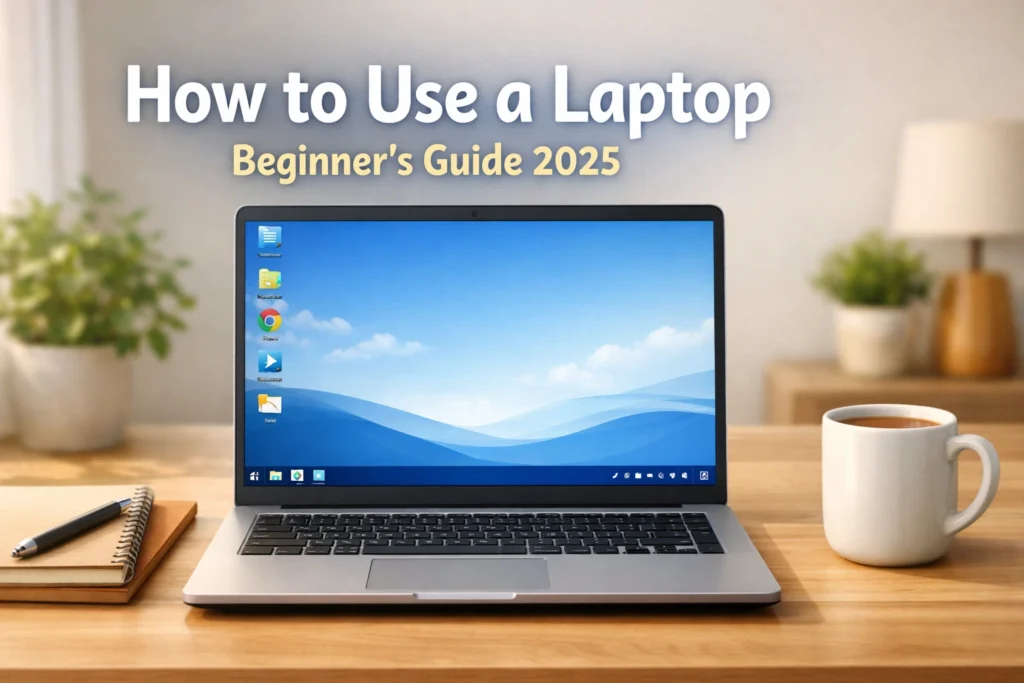

Stepping into the world of personal computing is an exciting milestone. Whether you are using your device for work, education, or staying in touch with family, learning how to use a laptop (beginner guide) is the foundation of digital literacy. While a laptop might look like a complicated piece of machinery, it is essentially a portable version of a desktop computer designed for convenience and efficiency.
In this guide, we will break down everything from the moment you unbox your device to browsing the web and keeping your system healthy.
Getting to Know Your Hardware
Before you press the power button, it helps to understand what you are holding. A laptop consists of two main halves connected by a hinge. The top half houses the screen (display), while the bottom half contains the keyboard, touchpad, and the “brains” of the machine.
Identifying the Main Parts
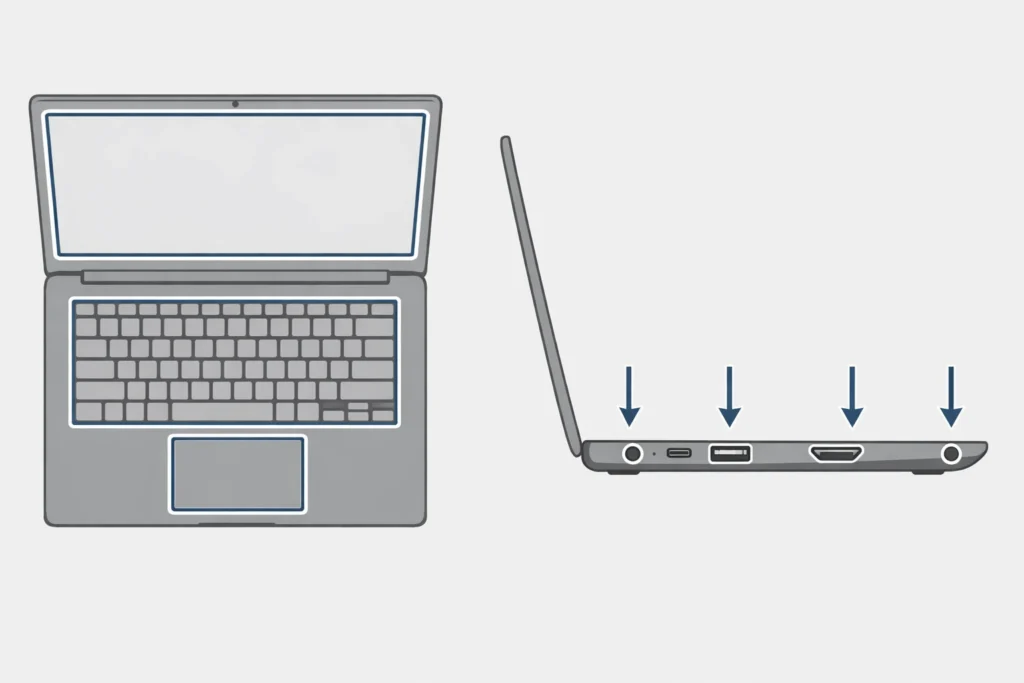
The keyboard is your primary input tool, but below it lies the touchpad. This acts as your mouse. On the sides of your laptop, you will find various ports. These are slots where you can plug in chargers, USB sticks, or headphones.
Understanding Ports and Connectivity
Most modern laptops feature USB C or USB A ports for data transfer. You might also see an HDMI port, which allows you to connect your laptop to a larger TV or monitor. If you see a small circular hole, that is likely your 3.5mm headphone jack.
Setting Up Your Laptop for the First Time
The first step in how to use a laptop (beginner guide) is the initial boot up. Every new laptop requires a few minutes of “handshaking” between you and the software.
Powering Up and Charging
Find the power button. It is usually located at the top corner of the keyboard or on the side of the chassis. If the laptop doesn’t turn on immediately, plug in the AC adapter. It is best practice to keep your laptop plugged in during the first setup to ensure it doesn’t die mid update.
Connecting to a Secure WiFi Network
During the setup, you will be asked to connect to the internet. Select your home WiFi network from the list and enter your password. This allows the laptop to download essential security updates and let you sign into your accounts.
After completing the initial connection and setup, following a laptop basic settings explained guide will help you optimize performance, privacy, and battery life from day one.
Navigating the Operating System OS
The Operating System is the software that manages everything. Think of it as the “manager” of your computer.
- Windows (Microsoft): The most common OS, used by brands like Lenovo, Dell, and HP.
- macOS (Apple): Exclusive to MacBooks. Known for its sleek design.
- ChromeOS (Google): Found on Chromebooks. It is lightweight and relies heavily on the Google Chrome browser.
Using the Desktop and Taskbar
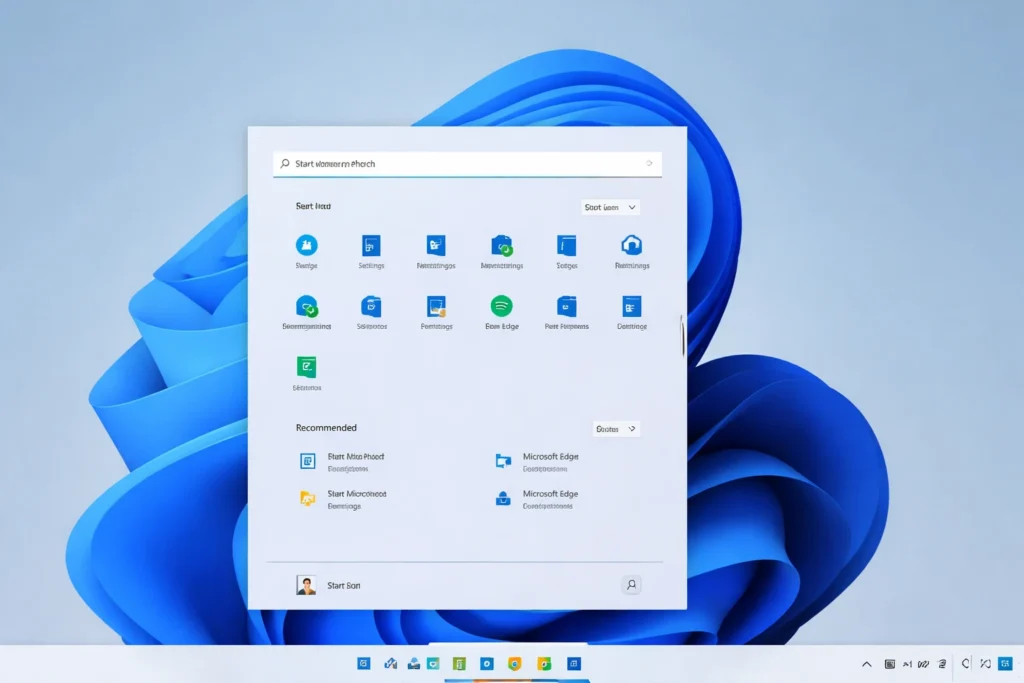
Once you log in, you will see the Desktop. At the bottom (on Windows) or the bottom/top (on Mac), you will see a bar of icons. This is the Taskbar or Dock. It holds your favorite programs and shows you which ones are currently open.
Mastering the Touchpad and Keyboard
The touchpad is often the hardest part for beginners to master. Unlike a physical mouse, it relies on gestures.
Learning Touchpad Gestures
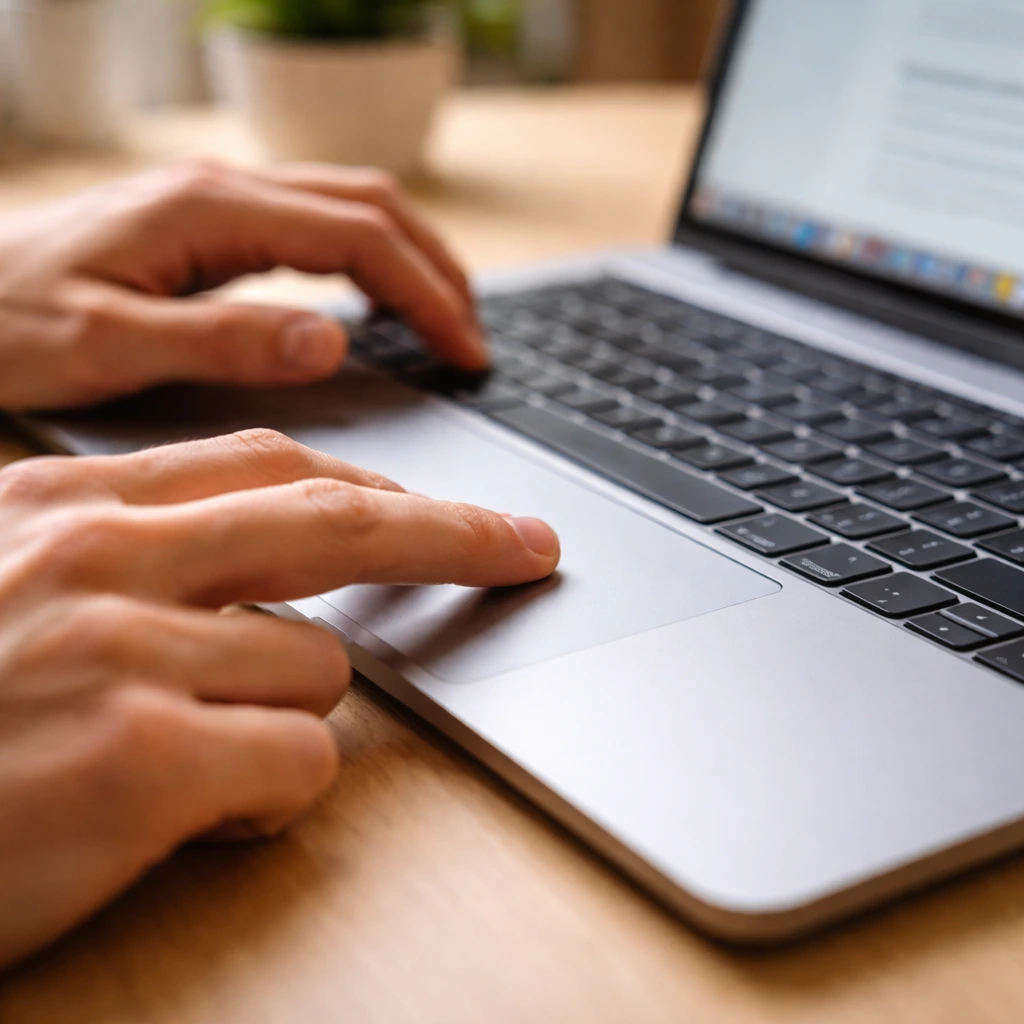
- Single Tap: One finger tap acts as a left click (select).
- Two Finger Tap: This usually acts as a right click, opening a menu of options.
- Two Finger Slide: Moving two fingers up or down on the pad will scroll the page you are looking at.
Essential Keyboard Shortcuts
To speed up your work, try these “cheats”:
- Ctrl + C (Copy): Memorize text to move it.
- Ctrl + V (Paste): Place the copied text elsewhere.
- Ctrl + Z (Undo): The “magic” button that reverses your last mistake.
Connecting to the Digital World
Once you are comfortable moving the cursor, it is time to go online. To do this, you need a Web Browser. Common ones include Google Chrome, Microsoft Edge, and Safari.
Browsing the Web Safely
Type a website address (like https://www.google.com/search?q=google.com) into the bar at the very top of the browser. Always look for a small padlock icon next to the this indicates the website is secure.
Managing Files and Folders
Your laptop stores information in Files. To stay organized, you can create Folders. Think of the “Documents” or “Pictures” folders as digital filing cabinets. You can drag and drop items into them to keep your desktop clean. For more detail visit How to organize digital files for beginners
Laptop Maintenance and Longevity
To ensure your investment lasts for years, you must treat it with care. Laptops are more fragile than they look.
How to Clean Your Screen and Keyboard
Never spray liquid directly onto your laptop. Instead, use a slightly damp microfiber cloth to wipe the screen. For the keyboard, a can of compressed air can blow out crumbs or dust trapped under the keys.
Basic Security
Always keep your Operating System updated. These updates often include “patches” that protect you from hackers. Additionally, avoid clicking on pop up ads that claim your computer has a virus—these are usually scams.
Conclusion
In summary, learning how to use a laptop (beginner guide) is about building confidence through exploration. While the buttons and settings may seem overwhelming at first, remember that these devices are designed to be intuitive. By mastering the basic hardware, understanding your operating system, and practicing safe browsing habits, you turn a complex machine into a powerful personal tool.
FAQ Section
1.How do I turn my laptop off properly?
Don’t just close the lid. Go to the Start Menu (Windows) or the Apple Menu (Mac) and select “Shut Down.” This allows the computer to save its work and turn off safely.
2: Why is my laptop fan making a loud noise?
This usually means the laptop is getting hot. Ensure it is sitting on a flat, hard surface (like a desk) rather than a bed or pillow, which can block the air vents.
3: Can I leave my laptop plugged in all the time?
While modern batteries are smart, it is healthy to let the battery drain to about 20% occasionally to maintain its long term capacity.