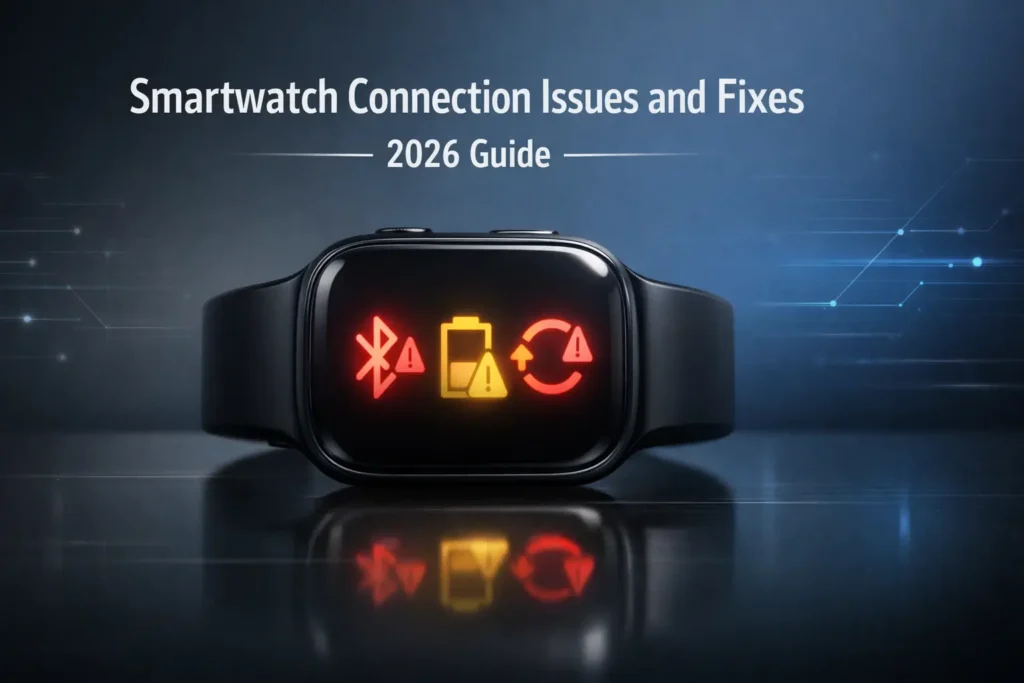

Smartwatches have become essential companions for tracking fitness goals, managing notifications, and staying connected throughout the day. However, even the most advanced wearable devices can experience connection problems that disrupt their functionality. From Bluetooth pairing failures to battery drain issues, these top 5 common smartwatch connection issues can frustrate users across all brands and models. This comprehensive guide provides practical fixes you can implement immediately to restore your smartwatch’s performance and maintain seamless connectivity with your smartphone. However, choosing the right smartwatch is only the first step maintaining that connection is vital. Even the most advanced wearables can experience issues, from Bluetooth pairing failures to battery drain, that disrupt their functionality.Some common smartwatch connection issues and fixes are,
Understanding Common Smartwatch Connection Issues and Fixes
Modern smartwatches rely on multiple wireless technologies to function properly. Bluetooth forms the primary connection between your wearable device and smartphone, while Wi-Fi and cellular capabilities enhance functionality. When these connections fail, your smartwatch becomes significantly less useful.
Why Connection Issues Occur
Connection problems stem from various sources. Software compatibility issues arise when your phone’s operating system updates but your smartwatch firmware lags behind. Hardware limitations in older models may struggle with newer Bluetooth protocols. Environmental factors like electromagnetic interference from other devices or physical obstacles can weaken signals between your watch and phone.
Signs Your Smartwatch Has Connection Problems
Recognizing connection issues early helps you address them before they worsen. Frequent disconnections interrupt notification delivery and fitness tracking. Failed pairing attempts prevent your smartwatch from communicating with your phone entirely. Delayed notifications mean important messages arrive minutes or hours late. Incomplete data syncing leaves gaps in your health statistics and activity records.
Bluetooth Pairing and Connection Failures
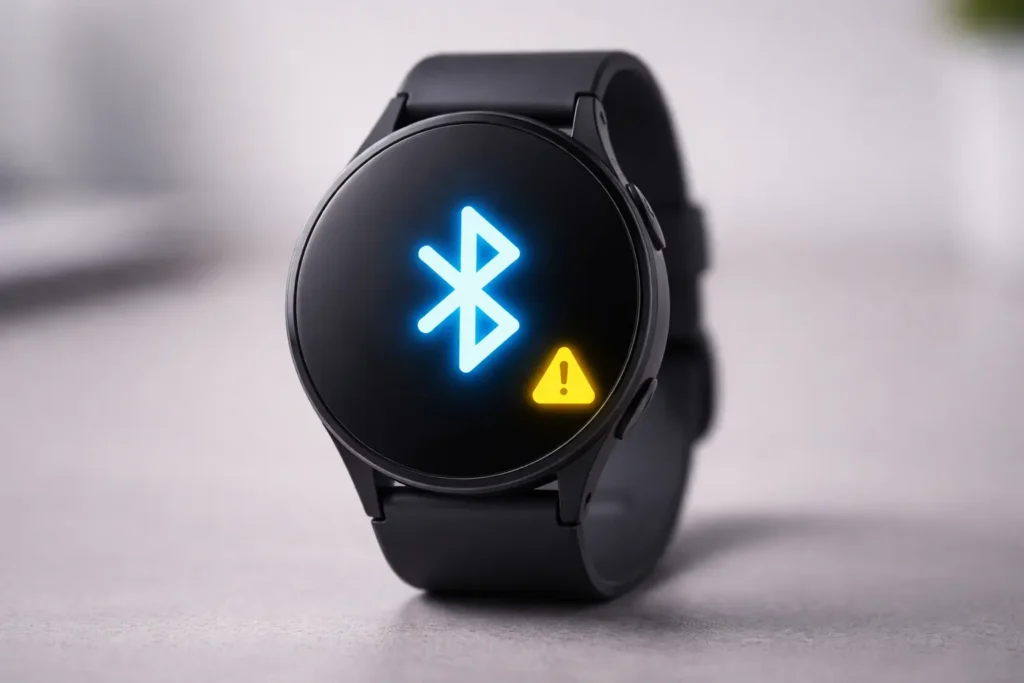
Bluetooth connectivity forms the backbone of smartwatch functionality. When this wireless connection fails, your device essentially becomes a glorified digital watch with limited capabilities.
What Causes Bluetooth Connection Problems?
Distance plays a crucial role in Bluetooth reliability. Most smartwatches maintain stable connections within 30 feet of your paired smartphone. Physical obstacles like walls, metal structures, or even your body can interfere with signal transmission. Other wireless devices operating on similar frequencies create electromagnetic interference that disrupts pairing. Outdated firmware on either your watch or phone introduces compatibility problems that prevent stable connections.
Step by Step Solutions for Bluetooth Issues
Start with the simplest solution restart both your smartwatch and smartphone. This refresh clears temporary glitches in the Bluetooth stack. Navigate to your phone’s Bluetooth settings, locate your smartwatch, and select “Forget This Device.” Then initiate a fresh pairing process through your smartwatch’s companion app. Verify you’re within ideal range by keeping devices within 10 to 15 feet during initial pairing. Check both devices for available software updates and install them immediately to ensure compatibility. If you are having persistent trouble with the official app or prefer to avoid it, you can follow this complete guide on smartwatch setup without an app to get your device running manually.
Advanced Bluetooth Troubleshooting Tips
For persistent problems, clear your phone’s Bluetooth cache by accessing system settings. On Android devices, navigate to Apps > Show System > Bluetooth > Storage > Clear Cache. Check for conflicting applications that might interfere with Bluetooth functionality, particularly other fitness or wearable apps. Verify your smartwatch model’s compatibility with your phone’s operating system version through the manufacturer’s website.
Rapid Battery Drain Affecting Connectivity
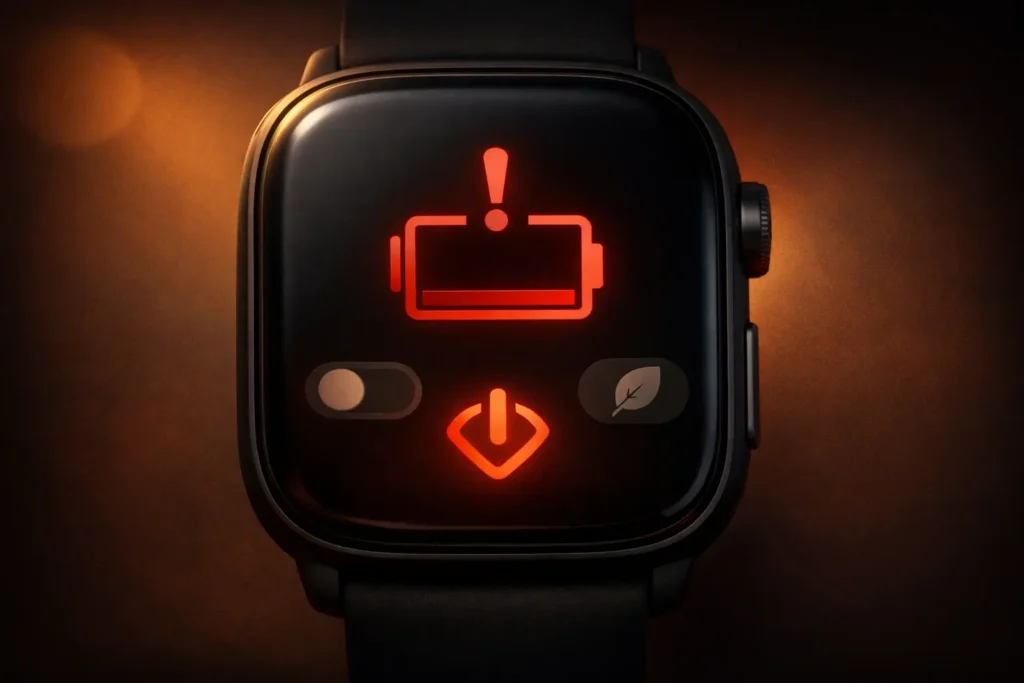
Battery problems directly impact connection quality. When power runs low, smartwatches automatically reduce functionality to conserve energy, which often means weakened or disabled wireless connections.
How Battery Issues Impact Connection
Power saving modes intentionally limit background processes and wireless activity. As battery levels drop below 20 percent, many smartwatches disable features like continuous heart rate monitoring and always on displays. Weak battery output affects signal strength, causing intermittent connection drops. Background processes running unnecessarily drain power while attempting to maintain multiple wireless connections simultaneously.
Quick Fixes to Extend Battery Life
Disable the always on display feature, which consumes significant power maintaining constant screen illumination. Reduce screen brightness to 50 to 60 percent unless you’re in direct sunlight. Turn off GPS tracking when not actively exercising, as continuous location services heavily drain battery. Close unnecessary background applications through your smartwatch’s app manager. Enable battery saver mode during periods when full functionality isn’t required.
Long Term Battery Optimization Strategies
Install software updates promptly, as manufacturers regularly include battery optimization improvements. Adopt proper charging habits by avoiding frequent partial charges and allowing occasional full discharge cycles. Monitor battery health through your device settings to identify abnormal degradation patterns. Replace aging batteries when capacity drops below 80 percent of original performance to maintain reliable connectivity.
Data Syncing Problems Between Devices
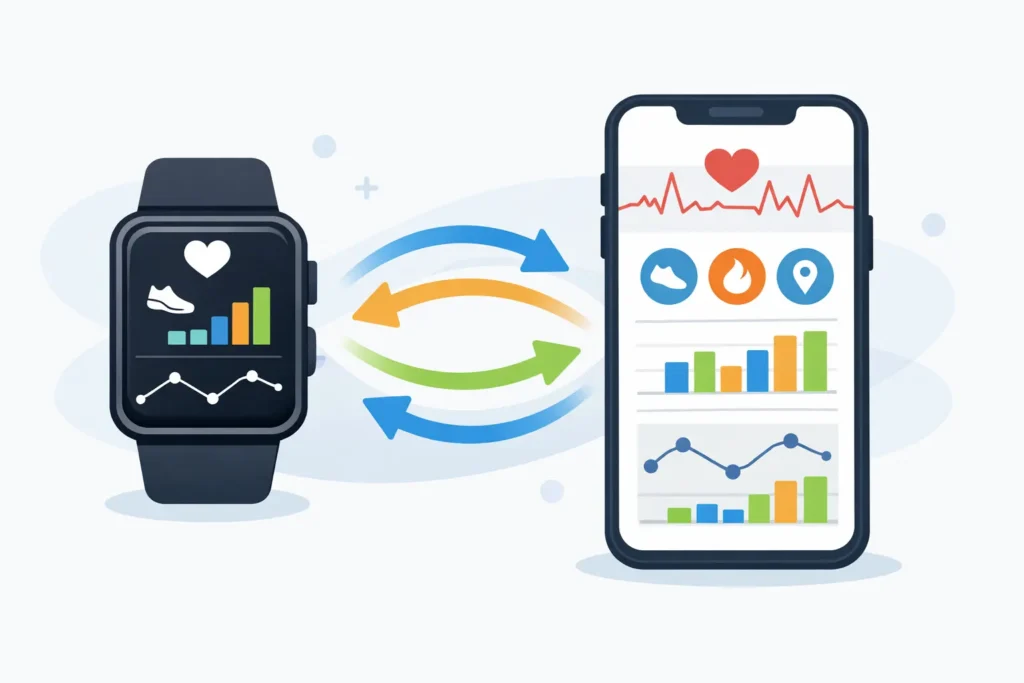
Synchronization issues prevent your fitness data, notifications, and settings from transferring correctly between your smartwatch and smartphone.
Common Syncing Error Scenarios
Fitness tracking data fails to upload to your phone’s health app, creating gaps in your activity history. Notifications configured on your smartphone don’t appear on your smartwatch despite enabled settings. Settings changes made on one device don’t reflect on the other, requiring manual adjustments on both platforms. Calendar events and reminders fail to sync, causing you to miss important appointments.
Resolving Synchronization Issues
Check companion app permissions on your smartphone to ensure location access, notifications, and background data are enabled. Verify both devices maintain stable internet connectivity, as many syncing processes require cloud services. Force a manual synchronization through your companion app’s settings menu. If problems persist, uninstall and reinstall the companion application, then re establish the device connection.
Maintaining Consistent Data Sync
Enable automatic update settings on both devices to ensure software compatibility. Establish a routine of restarting your smartwatch weekly to clear memory and refresh system processes. Configure cloud backup services to preserve your data during syncing interruptions. Monitor storage space on both devices, as insufficient memory can prevent proper synchronization.
Screen Unresponsiveness and Display Glitches
An unresponsive touchscreen renders your smartwatch nearly unusable, preventing access to features and settings.

Why Smartwatch Screens Stop Responding
Software freezes occur when too many applications run simultaneously or when corrupted data causes system hang ups. Physical damage from drops or impacts cracks the display or damages underlying touch sensors. Screen protector interference happens when poorly fitted protectors create air bubbles or excessive thickness that blocks touch detection. Moisture or sweat buildup on the screen surface interferes with capacitive touch sensing.
Fixing Unresponsive Touch Screens
Clean the screen surface thoroughly using a microfiber cloth to remove oils, sweat, and debris. Remove your current screen protector and test touch responsiveness without it, as some protectors reduce sensitivity significantly. Force restart your smartwatch by holding the power button for 10 to 20 seconds until the device powers off and reboots. If software issues persist, perform a factory reset through settings, ensuring you’ve backed up important data first.
When to Seek Professional Screen Repair
Visible cracks or shattered displays require professional replacement to restore functionality. Persistent unresponsiveness after all troubleshooting steps indicates internal component failure. Internal display issues like dead pixels, discoloration, or flickering screens suggest hardware damage that requires expert diagnosis. Most manufacturers offer warranty coverage for defective screens within the first year.
Charging Port and Power Connection Problems
Charging issues prevent you from powering up your smartwatch, directly impacting its ability to maintain connections throughout the day.
Identifying Charging Connection Issues
Intermittent charging occurs when the connection between your watch and charging dock repeatedly breaks, showing charging then not charging status. No charging response means your device shows no indication of power when placed on the charger. Overheating during charging suggests electrical problems that could damage your battery or internal components. Slow charging taking several hours longer than specified indicates charging circuit issues.
DIY Charging Problem Solutions
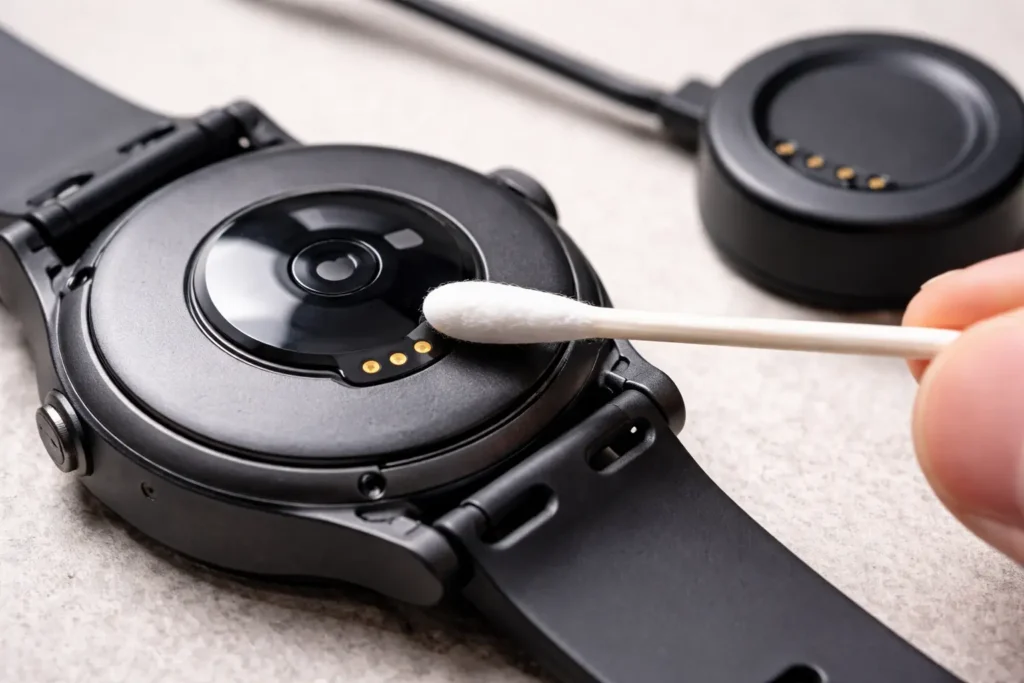
Clean charging contacts on both your smartwatch and charging dock using a soft cloth dampened with rubbing alcohol to remove dirt, sweat, and corrosion. Inspect your charging cable and power adapter for visible damage, fraying, or bent connectors. Try different power sources including wall outlets, USB ports on computers, and portable batteries to isolate the problem. Examine the charging port on your smartwatch for debris, lint, or physical damage using a flashlight and magnifying glass if needed.
Preventing Future Charging Problems
Use only original or certified charging accessories designed specifically for your smartwatch model. Establish a weekly port cleaning routine to prevent buildup of debris and residue. Store charging cables properly by avoiding tight coils and extreme temperatures that degrade wire integrity. Position your charging dock on stable surfaces where it won’t get knocked or disturbed during charging.
Additional Connection Problems and Quick Fixes
Beyond the top five issues, several other connection problems occasionally affect smartwatch performance.
WiFi Connectivity Issues
Reset network settings through your smartwatch’s system menu to clear saved networks and connection preferences. Verify your router’s compatibility by checking whether it broadcasts both 2.4GHz and 5GHz frequencies, as some smartwatches only support 2.4GHz networks. Ensure your smartwatch remains within reasonable range of your WiFi router for stable connectivity.
GPS Tracking Inaccuracies
Verify location permissions are enabled in your smartwatch settings and companion app. Position yourself in open areas away from tall buildings, dense tree cover, or underground spaces when initiating GPS activities. Allow 30 to 60 seconds for initial satellite acquisition before starting tracked workouts. Calibrate GPS through your fitness app’s settings menu to improve future tracking accuracy.
Sensor Malfunction Solutions
Clean sensor surfaces on the back of your smartwatch using a damp cloth to remove sweat, lotion, and skin oils. Ensure proper device placement by wearing your smartwatch snugly but comfortably one finger’s width above your wrist bone. Perform calibration procedures through your companion app for heart rate sensors and step counters. Restart your device after cleaning sensors to refresh detection algorithms.
Preventive Maintenance for Optimal Smartwatch Performance
Regular maintenance prevents many connection issues before they occur.
Daily Care Routines
Wipe down your smartwatch with a clean cloth at the end of each day to remove accumulated sweat and debris. Adjust wearing position to ensure sensors maintain consistent skin contact without being uncomfortably tight. Manage active features by disabling GPS and continuous heart rate monitoring when not needed for specific activities.
Weekly Maintenance Tasks
Check for software updates every week and install them promptly to access bug fixes and improvements. Verify connection stability by monitoring notification delivery and data syncing patterns. Optimize battery performance by reviewing power usage statistics and disabling unnecessary background processes.
Monthly Best Practices
Perform deep cleaning by removing bands and thoroughly washing your smartwatch according to its water resistance rating. Execute full system updates including both firmware and companion applications. Back up your data through cloud services to protect against data loss during troubleshooting procedures. Inspect hardware for wear signs like loose buttons, charging port damage, or strap deterioration.
Conclusion
These top 5 common smartwatch connection issues Bluetooth pairing failures battery drain, syncing problems, screen unresponsiveness, and charging difficulties affect users across all brands and price ranges. Most connection problems have straightforward solutions you can implement yourself without technical expertise. Start with simple fixes like restarting devices and cleaning components before progressing to more complex troubleshooting steps. Regular preventive maintenance significantly reduces the frequency and severity of connection issues. When DIY solutions fail to resolve persistent problems, contact your manufacturer’s customer support or visit an authorized repair center for professional assistance. By understanding these common issues and their fixes, you’ll maintain optimal smartwatch performance and reliable connectivity for all your daily activities.
FAQs About Smartwatch Problems & Fixes
What should I do if my smartwatch is not connecting?
Start by checking Bluetooth on your phone and make sure it’s turned on. Keep your smartwatch close to the phone and confirm both devices are compatible. Restart both the watch and the phone, then try reconnecting through the official companion app (like the Apple Watch app or Wear OS). If the issue continues, update the app, reset network settings, or repair the watch from scratch
What is the most common problem with smartwatches?
The most common smartwatch problem is connectivity issues, especially Bluetooth pairing failures. Many users in the U.S. also report fast battery drain, delayed notifications, and syncing problems with fitness data. These issues are usually caused by outdated software, app conflicts, or weak Bluetooth connections.
Why does my smartwatch keep connecting and disconnecting?
This usually happens due to Bluetooth interference, low battery, or software glitches. Being too far from your phone, having multiple Bluetooth devices connected, or running an outdated watch OS can cause repeated disconnections. Updating the firmware and keeping the watch within Bluetooth range often fixes the problem.
What is the most common smartwatch repair?
The most common smartwatch repair in the U.S. is battery replacement, followed by screen repairs due to accidental drops. Charging port issues and button malfunctions are also frequent. Battery wear is expected over time, especially after daily charging cycles.
What is the average lifespan of a smartwatch?
The average lifespan of a smartwatch is 2 to 4 years, depending on brand, usage, and battery health. Premium models like Apple Watch and Samsung Galaxy Watch tend to last longer with software support, while budget smartwatches may need replacement sooner due to battery degradation or limited updates.