
Is your Samsung Galaxy tablet running frustratingly slow? Can’t remember your lock screen password? Planning to sell your device but worried about personal data? You’re not alone. Thousands of tablet owners face these challenges every day. The good news is that resetting your Samsung Galaxy tablet can solve most of these problems quickly and effectively. This comprehensive guide covers everything you need to know about fixing and resetting Samsung Galaxy tablets, from simple soft resets to complete factory resets. Whether you’re dealing with a frozen screen, forgotten password, or just want to restore your device to peak performance, we’ll walk you through each solution step by step.
Understanding Samsung Tablet Reset Options
Before diving into the reset process, it’s essential to understand your options. Samsung Galaxy tablets offer several reset methods, each designed for specific situations.
What Is a Soft Reset and When to Use It
A soft reset is the simplest form of restart for your tablet. It’s essentially a forced reboot that clears temporary memory without affecting your data, apps, or settings. Think of it as giving your device a quick refresh. This method works perfectly when your tablet becomes unresponsive, freezes during use, or apps stop working correctly. The beauty of a soft reset is that it solves many minor issues without risking data loss.
What Is a Factory Reset and Its Purpose
A factory reset completely erases everything on your tablet and restores it to the condition it was in when you first took it out of the box. This process removes all personal data, downloaded apps, photos, videos, and customized settings. You’d perform a factory data reset when selling your device, dealing with persistent malware, experiencing severe performance issues that soft resets can’t fix, or when you’ve been locked out of your tablet.
Partial Resets for Specific Settings
Samsung tablets also offer targeted reset options that address specific problems without wiping your entire device. You can reset network settings to fix connectivity issues, restore WiFi and Bluetooth settings while keeping everything else intact, reset accessibility features to default, or reset all system settings while preserving your apps and personal data.
Comparison Table of Reset Types
Here’s how different reset methods compare
Soft Reset: No data loss, takes 1 to 2 minutes, fixes temporary glitches
Reset All Settings: No app/data loss, takes 2 to 3 minutes, restores system defaults
Network Reset: No app/data loss, takes 1 minute, fixes connectivity issues
Factory Reset: Erases everything, takes 5 to 15 minutes, complete fresh start
When You Should Reset Your Samsung Galaxy Tablet
Understanding when to reset your device helps you choose the right approach and avoid unnecessary data loss.
Performance Issues and Sluggish Response
Your tablet gradually accumulates cached data, background processes, and temporary files over time. When your Samsung Galaxy tablet starts lagging, apps take forever to open, or the touchscreen responds slowly, these are clear signs you might need a reset. Start with a soft reset for minor slowdowns. If problems persist after restarting, consider resetting specific settings. Only proceed to a factory reset if all else fails and performance remains unacceptable.
Forgotten Password or Locked Screen
Being locked out of your own tablet is incredibly frustrating. Whether you’ve forgotten your PIN, password, or pattern lock, a factory reset is typically your only option to regain access. This situation often occurs when someone inherits a device from a family member who forgot to share the password. Unfortunately, there’s no way around a full data wipe in these cases. This security feature protects your information if your tablet is lost or stolen.
Preparing to Sell or Give Away Your Device
Before selling, trading in, or gifting your Samsung tablet, you must perform a factory reset to protect your privacy. This ensures all your personal information, accounts, photos, messages, and browsing history are completely removed. Buyers expect a clean device, and you don’t want your sensitive data falling into the wrong hands. Always back up important files before initiating this process.
Persistent Software Glitches and Errors
Sometimes tablets develop software problems that simple fixes can’t resolve. Constant app crashes, system update failures, unusual error messages, or mysterious battery drain are all indicators that your device’s software has become corrupted. A factory reset often resolves these stubborn issues by giving your operating system a fresh start. Think of it as the nuclear option that solves problems when nothing else works.
Critical Steps Before Resetting Your Tablet
Never skip the backup process. Resetting without backing up means losing precious memories and important data forever.
Backing Up Data to Google Drive

Google provides free cloud storage that integrates seamlessly with Android devices. Open your Settings app and navigate to Accounts and Backup. Tap Backup and restore, then select your Google account. Ensure the backup option is enabled and tap Back up now. This process saves your contacts, calendar events, app data, device settings, and call history. The backup might take several minutes depending on how much data you’re storing.For more information about Google’s backup services, visit theofficial Google One help center.
Using Samsung Cloud for Data Backup
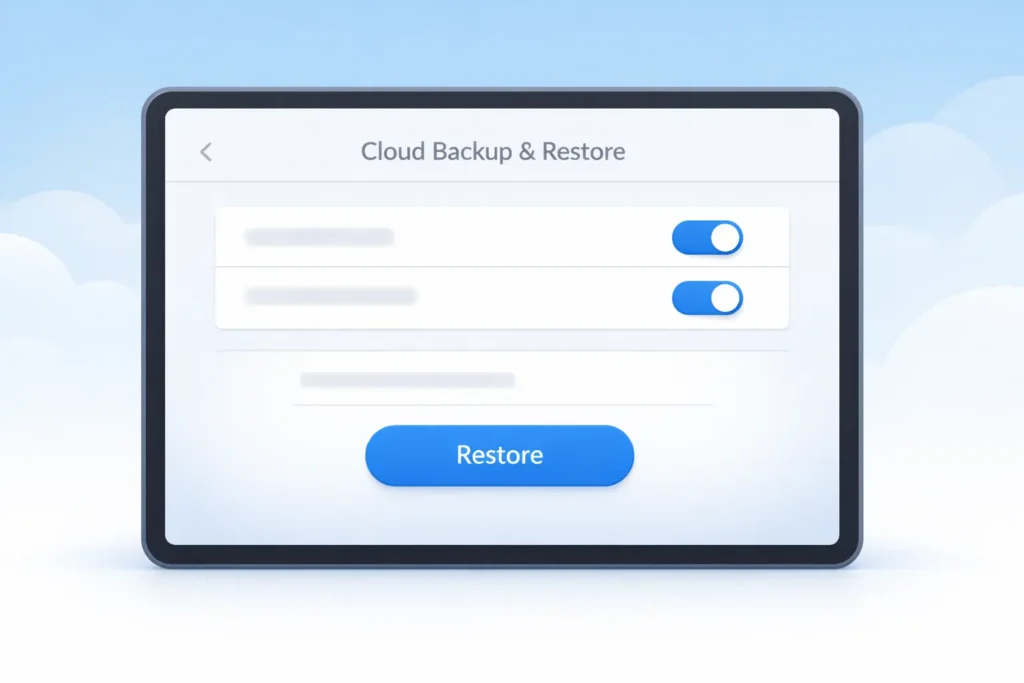
Samsung offers its own cloud service specifically designed for Galaxy devices. Access Settings and tap on your name at the top if you’re already signed in to your Samsung account. Select Samsung Cloud, then tap Back up data. Choose which apps and data types you want to include in the backup. Tap Back up now and wait for the synchronization to complete. Tap Done once finished. Samsung Cloud is particularly useful for device specific settings and Samsung app data.Learn more about Samsung Cloud storage options at theSamsung Members support page.
Transferring Files to Your Computer
For those who prefer keeping data local, transferring files to your computer provides complete control. Connect your tablet to your computer using a USB cable. On your tablet, swipe down and tap the USB notification. Select File Transfer or Transfer files. On your computer, open the device folder and copy important files to a safe location. Focus on photos, videos, documents, and downloads folders. This method works well when you have limited cloud storage or prefer physical backups.
Checking Your Google Account Credentials
This step is absolutely critical and often overlooked. After a factory reset, Google’s security feature called Factory Reset Protection will ask you to verify the Google account previously synced with your device. Make certain you remember your Gmail address and password before resetting. Try logging into your Google account on another device to confirm your credentials work. If you’ve forgotten your password, use Google’s account recovery process now, before resetting your tablet.
How to Perform a Soft Reset on Samsung Tablets
When your tablet freezes or becomes sluggish, a soft reset should be your first troubleshooting step.
Standard Power Button Method
The simplest approach involves just the power button. Press and hold the Power button for approximately one to two minutes until the screen goes completely black. Release the button and wait a few seconds. Press the Power button once again to turn your tablet back on. This method works well when your tablet is responsive enough to display the power menu.
Using Power and Volume Down Combination
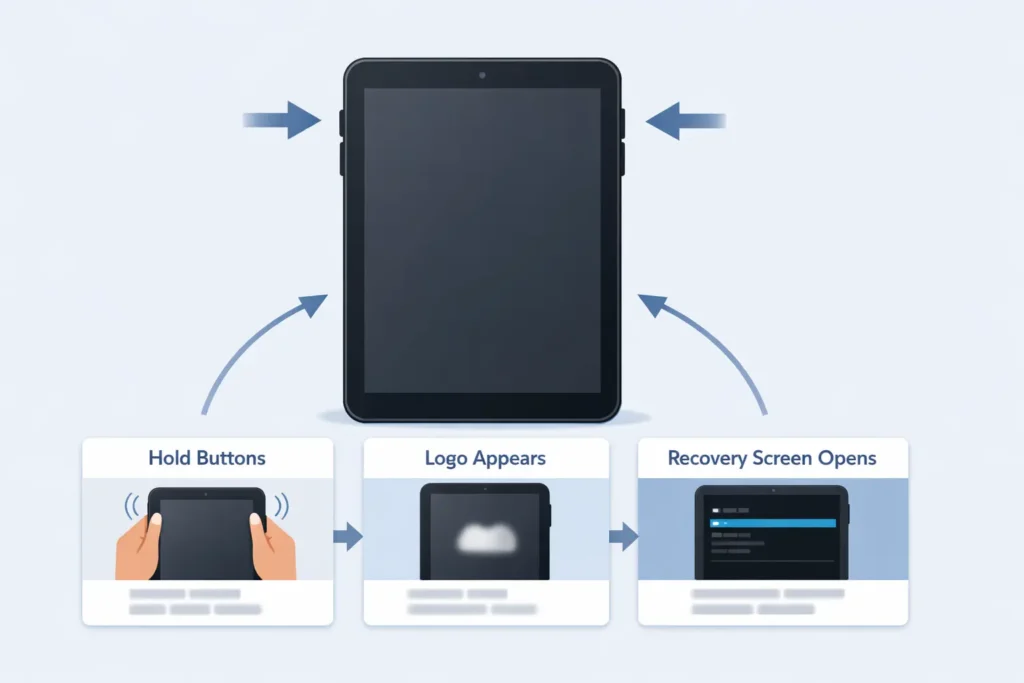
For completely frozen tablets that won’t respond to the power button alone, use this forced restart method. Press and hold both the Power button and Volume Down button simultaneously. Continue holding both buttons for at least 10 to 15 seconds. You should feel a vibration or see the screen go dark. Release both buttons and wait for your tablet to automatically restart. If it doesn’t restart on its own, press the Power button once to turn it back on.
When Soft Reset Solves Your Problems
Soft resets effectively address many common issues. Your tablet should restart normally and feel more responsive after the reset. Apps that were frozen should now open properly. Battery drain might improve if background processes were causing the problem. If your issues continue after a soft reset, you’ll need to consider more comprehensive reset options. Remember, soft resets are your go to solution for minor glitches because they’re quick, safe, and preserve all your data.
Factory Reset Through Settings Menu Easy Method
This method is ideal when your tablet is functioning well enough to access the Settings menu and you know your password.
Step by Step Settings Navigation
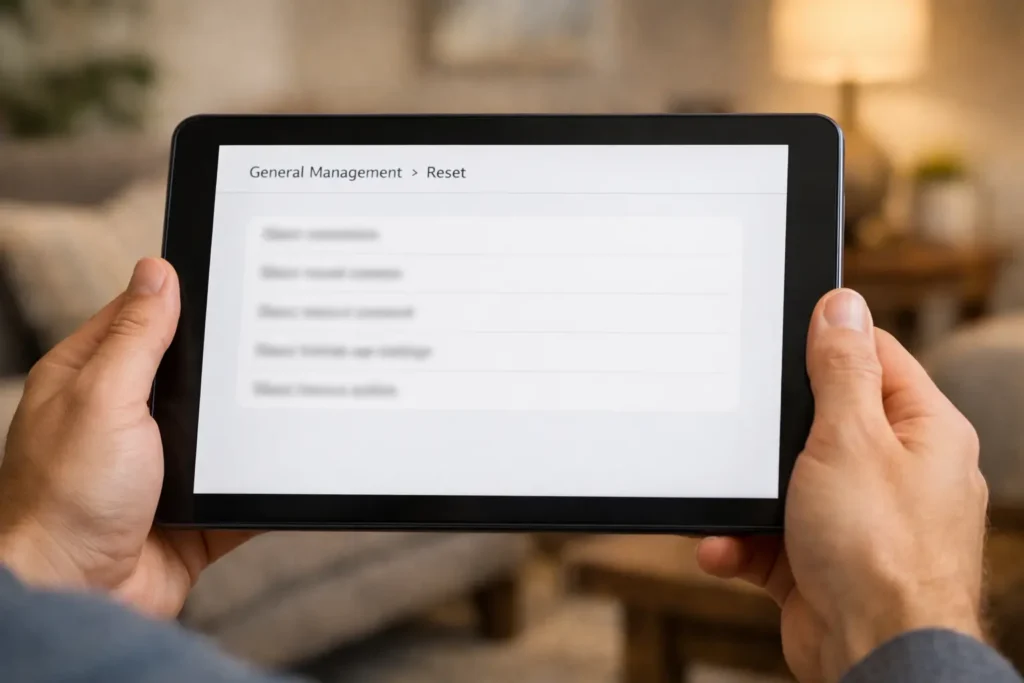
Begin by unlocking your tablet and opening the Settings app from your app drawer or notification shade. Scroll down until you find General Management and tap it. Within General Management, swipe down to locate the Reset option. Tap Reset to see all available reset options. Select Factory Data Reset from the list. Take your time reviewing this screen, as it shows exactly what will be erased.
Understanding the Warning Messages
The Factory Data Reset screen displays crucial information you need to review carefully. You’ll see a list of all accounts currently signed into your device, including your Google and Samsung accounts. The screen shows which types of data will be permanently deleted, such as apps, media, settings, and personal files. You’ll also notice information about your SD card if you have one inserted. Read everything carefully because this is your last chance to back out before losing your data.
Confirming Your Reset Decision
When you’re absolutely certain you want to proceed, scroll to the bottom of the screen. Tap the blue Reset button to continue. Your tablet will immediately ask you to enter your security credentials. Type in your PIN, password, or draw your pattern lock as requested. If you have a Samsung account linked to your device, you’ll need to enter that password as well. Finally, a Delete All button appears. Tap it to initiate the factory reset process.
What Happens During the Reset Process
Once you tap Delete All, your tablet begins erasing data immediately. The screen might go black or show the Samsung logo during this process. Don’t panic if the screen stays dark for several minutes. The entire reset typically takes between five and fifteen minutes, depending on how much data your tablet contains. Your device will automatically restart when the process completes. You’ll then see the initial setup screen, just like when your tablet was brand new.
Hard Reset Using Recovery Mode Button Method
Use this method when you can’t access your tablet’s settings due to a forgotten password, frozen screen, or software malfunction.
Entering Recovery Mode on Your Tablet
First, make sure your tablet is completely powered off. If it won’t turn off normally, hold the Power and Volume Down buttons until the screen goes black. Once the device is off, prepare to hold multiple buttons simultaneously. Press and hold both the Volume Up button and the Power button together. Keep holding both buttons firmly for approximately 10 to 15 seconds. You’ll see the Samsung logo appear briefly, but don’t release the buttons yet. Continue holding until you see the Android Recovery screen with menu options. Only then should you release both buttons.
Navigating the Android Recovery Menu
The Android Recovery screen looks different from your normal tablet interface. It features white or blue text on a black background with several menu options. You cannot use the touchscreen in Recovery Mode. Instead, use the Volume Up button to move up through menu options and the Volume Down button to move down. The Power button selects whichever option is currently highlighted. The currently selected option typically appears in a different color or with a highlighting box around it.
Selecting Wipe Data Factory Reset Option
Use the Volume Down button to scroll through the menu until “Wipe data/factory reset” is highlighted. Once this option is selected, press the Power button to confirm your choice. A new screen appears asking you to confirm this action, usually showing “Yes” options. Use the Volume buttons again to highlight the confirmation option, often labeled “Yes delete all user data” or simply “Yes.” Press the Power button to proceed with the factory reset. The device will then begin erasing all data, which might take several minutes.
Rebooting After Successful Reset
When the data wipe completes, you’ll return to the main Recovery menu. The “Reboot system now” option should already be highlighted at the top of the menu. If not, use the Volume buttons to highlight it. Press the Power button to select Reboot system now. Your tablet will restart and begin the boot up process. The first boot after a factory reset takes longer than usual, sometimes up to five minutes. Be patient and don’t interrupt the process. Eventually, you’ll arrive at the initial setup screen where you can configure your tablet as if it were new.
Resetting Specific Settings Without Losing Data
These targeted reset options solve specific problems while preserving your apps, photos, and personal files.
How to Reset Network Settings Only
Mobile network problems often stem from corrupted network configurations rather than hardware issues. Open Settings and go to General Management. Tap Reset, then select Reset Mobile Network Settings. Review the information explaining what will be reset. Tap Reset Settings, then tap Reset again to confirm. This process restores all network related settings to factory defaults. Your cellular connectivity settings, network preferences, and mobile data configurations will be cleared. You may need to contact your carrier afterward to restore mobile network connectivity.
Resetting WiFi and Bluetooth Connections
When you’re experiencing persistent connection issues with wireless devices, this reset option helps. Navigate to Settings and select General Management. Tap Reset, then choose Reset WiFi and Bluetooth Settings. Read through the explanation of what this reset affects. Tap Reset Settings to continue. Confirm by tapping Reset one more time. After completion, all saved WiFi networks will be removed. You’ll need to reconnect to your WiFi networks by entering passwords again. Previously paired Bluetooth devices will also need to be paired again. This reset resolves issues like devices that won’t connect or connections that constantly drop.
Restoring Accessibility Settings to Default
If you’ve been experimenting with accessibility features and want to start over, this option helps. Go to Settings and tap General Management. Select Reset, then tap Reset Accessibility Settings. Review what will be changed, including TalkBack, voice assistant features, display adjustments, and hearing aid settings. Tap Reset Settings to proceed. Confirm by tapping Reset. Your accessibility preferences return to default settings, but your apps, data, and other device settings remain untouched.
Reset All Settings While Keeping Apps
This reset option provides a middle ground between a soft reset and factory reset. Access Settings and navigate to General Management. Tap Reset, then select Reset All Settings. This option affects system settings, display preferences, sound settings, and general configurations. Importantly, it does not touch your security settings, language preferences, or personal data. Tap Reset Settings after reviewing the information. Confirm by tapping Reset one final time. Your device restarts with fresh system settings while your apps, photos, contacts, and downloads remain intact.
Troubleshooting Common Reset Problems
Even straightforward reset procedures can sometimes encounter obstacles. Here’s how to overcome them.
Tablet Won’t Enter Recovery Mode
If pressing the button combination doesn’t work, first ensure your tablet has at least 20 percent battery charge. Low battery can prevent Recovery Mode from loading. Try a different button combination, as some Galaxy Tab models use Volume Up plus Power and Home buttons together. Make sure you’re holding the buttons long enough, at least 15 to 20 seconds. If you see the Samsung logo but then the tablet boots normally, you released the Power button too early. Try again, but this time release only the Power button when you see the logo while continuing to hold Volume Up.
Reset Process Stuck or Taking Too Long
Factory resets normally complete within 15 minutes. If your tablet has been resetting for longer than 30 minutes, something may be wrong. First, don’t panic and don’t interrupt the process unless absolutely necessary. Check if your tablet is warm to the touch, which indicates it’s still working. If the screen has been completely black for over an hour with no signs of activity, you may need to force a restart. Hold the Power and Volume Down buttons for 10 seconds to force a reboot. If the device still won’t respond, you’ll likely need professional service at a Samsung repair center or authorized service provider.
Google Account Verification After Reset
Factory Reset Protection is Google’s security feature designed to prevent unauthorized use of your device after a reset. When you factory reset your tablet, Google requires you to sign in with the last Google account that was synced to the device. This verification screen appears during initial setup after the reset. You must enter the correct email address and password for the Google account previously used on the tablet. If you can’t remember these credentials, use Google’s account recovery process on another device to reset your password. Without these credentials, you cannot complete the setup, and your tablet remains locked.
Factory Reset Protection FRP Issues
FRP lock activates when a factory reset occurs without properly removing the Google account first. To avoid FRP lock, always remove your Google account before resetting. Go to Settings, tap Accounts and Backup, select your Google account, and tap Remove Account before performing the reset. If you’re already locked by FRP after a reset, you’ll need the original Google account credentials to unlock the device. There are no legitimate shortcuts or bypass methods that work reliably. If you purchased a used tablet with FRP lock, contact the previous owner to remove their account remotely using Find My Device. In cases where the previous owner is unreachable, Samsung support may be able to help, but you’ll need proof of purchase.
Setting Up Your Samsung Tablet After Reset
Once your reset completes successfully, you’ll need to set up your tablet from scratch.
Initial Setup Walkthrough
Your tablet displays a welcome screen showing available languages. Select your preferred language and tap Next or the arrow button. Accept the Terms and Conditions by checking the boxes and tapping Agree. When prompted, connect to a WiFi network by selecting your network name and entering the password. The tablet will check for software updates and may download them immediately. Sign in with your Google account by entering your email and password. This step is crucial for accessing the Play Store and restoring your backup. If you want to restore from a previous backup, select that option and choose which backup to restore. Otherwise, select Set up as new device to start fresh.
Restoring Your Backed Up Data
If you created backups before resetting, now is the time to restore them. For Google backups, during initial setup, select the option to restore from Google backup. Choose which backup to restore from if multiple backups exist. Wait while your apps, contacts, and settings are restored, which can take 10 to 30 minutes. For Samsung Cloud backups, complete the initial setup first, then go to Settings. Tap your name, select Samsung Cloud, and tap Restore data. Choose what you want to restore and tap Restore. Your data will download and sync to your tablet.
Reinstalling Essential Apps
Even if you restored from backup, some apps may not reinstall automatically. Open the Play Store and tap your profile icon in the top right. Select Manage apps and device, then go to the Manage tab. You’ll see a list of all apps previously installed on your account. Tap the checkbox next to apps you want to reinstall. Tap the download icon at the top to install all selected apps at once. This approach is much faster than searching for and installing apps individually.
Optimizing Performance After Reset
Now that your tablet is reset, take steps to maintain its performance. Go through your apps and uninstall anything you don’t regularly use. Clear cache from apps that tend to accumulate data like browsers and social media. Review and disable unnecessary notifications to improve battery life. Set up automatic backups so you’re prepared if you need to reset again. Configure battery optimization settings under Device Care. Run a security scan using Samsung’s built in security features. These post reset optimizations help keep your tablet running smoothly for months to come.
Preventing Future Reset Needs
Regular maintenance helps you avoid situations that require factory resets.
Regular Maintenance Tips
Establish a monthly maintenance routine for your tablet. Clear the cache partition every few months by accessing Recovery Mode and selecting “Wipe cache partition” instead of factory reset. This removes temporary files without affecting your data. Restart your tablet at least once a week to clear memory and refresh system processes. Keep your operating system and apps updated to the latest versions. Updates often include performance improvements and bug fixes. Monitor your available storage and keep at least 10 to 15 percent free. Full storage significantly impacts performance.
Storage Management Best Practices
Manage your storage proactively to prevent performance degradation. Delete or move photos and videos to cloud storage or your computer regularly. Remove downloaded files you no longer need from the Downloads folder. Clear app caches periodically through Settings, Storage, and Cached Data. Use an SD card if your tablet supports one, and move media files there. Uninstall apps you haven’t used in over a month. Stream music and videos instead of downloading when possible. Check which apps consume the most storage under Settings and Storage and adjust accordingly.
Security Settings to Configure
Proper security settings prevent many problems that lead to resets. Enable screen lock with a PIN, password, or pattern you can remember. Write down your Google account password and store it safely. Set up Samsung Find My Mobile so you can remotely lock or wipe your device if lost. Enable two factor authentication on your Google account for added security. Be cautious about granting app permissions, especially for storage and contacts. Only install apps from the Google Play Store. Keep Samsung Knox security features enabled. Regular security scans help detect problems before they become severe.
When to Contact Professional Support
Some situations require expert assistance rather than DIY troubleshooting. Contact Samsung support if your tablet won’t respond to any reset methods, hardware buttons don’t work properly, the screen remains black after multiple reset attempts, or you suspect physical damage might be causing problems. Reach out to your carrier if you experience persistent network connectivity issues after resetting network settings. Visit an authorized repair center if your tablet overheats during the reset process or makes unusual noises. Professional technicians have specialized tools and software that can resolve issues beyond typical user level troubleshooting.
Conclusion
Resetting your Samsung Galaxy tablet doesn’t have to be complicated or stressful. Whether you need a quick soft reset to fix a frozen screen or a complete factory reset to prepare your device for sale, this guide has covered all the methods you need. Remember to always back up your important data before performing any factory reset, and choose the reset type that matches your specific situation. Soft resets solve temporary glitches without data loss, while factory resets provide a complete fresh start when nothing else works. By following the steps outlined in this ultimate guide to fixing and resetting Samsung Galaxy tablets, you can confidently resolve most tablet issues on your own and maintain optimal device performance for years to come.
FAQ Section
How long does it take to factory reset a Samsung tablet?
A complete factory reset typically takes between 5 and 15 minutes from start to finish. The duration depends on how much data your tablet contains and which model you own. Newer tablets with faster processors complete resets more quickly. After tapping the final confirmation button, expect the screen to go black or show the Samsung logo for several minutes. The first boot after a factory reset also takes longer than usual, sometimes 3 to 5 minutes. If your reset is taking longer than 30 minutes, something may be wrong, and you should consult the troubleshooting section of this guide.
What’s the difference between a soft reset and a hard reset?
A soft reset is simply a forced restart of your tablet that clears temporary memory without affecting your data, apps, or settings. You perform it by holding the power button or power and volume buttons until the device restarts. A hard reset, also called a factory reset, completely erases all data, settings, and apps from your tablet, returning it to factory condition. Soft resets are safe to perform anytime for minor issues, while hard resets should only be done when necessary and after backing up your data.
Will factory resetting remove viruses from my Samsung tablet?
Yes, a factory reset effectively removes most viruses, malware, and unwanted software from your Samsung tablet. Since the reset erases all apps and data, including malicious software, your tablet returns to a clean state. However, after resetting, be careful about what you reinstall. If you restore apps from an infected backup or reinstall the same problematic app, you might reintroduce the malware. To stay protected, only install apps from the Google Play Store, keep your operating system updated, and run regular security scans using Samsung’s built in security features.
Can I reset my Samsung tablet without losing photos?
Unfortunately, a factory reset will delete all photos stored directly on your tablet. However, you can preserve your photos by backing them up before resetting. Upload photos to Google Photos, Samsung Cloud, or another cloud storage service. Alternatively, transfer photos to your computer using a USB cable. If you only need to fix performance issues, try a soft reset first or reset specific settings without performing a full factory reset. These options solve many problems while keeping your photos safe.
What happens if I factory reset my tablet without backing up?
Factory resetting without a backup means permanently losing all data on your tablet. This includes photos, videos, contacts, text messages, app data, downloaded files, and personalized settings. There is no way to recover this information after the reset completes. The only exception is if you previously enabled automatic backups to Google or Samsung Cloud without realizing it. During setup after the reset, check if a backup exists that you can restore from. Otherwise, the data is gone forever, which is why backing up before resetting is so critical.
How do I bypass Google verification after factory reset?
Google’s Factory Reset Protection requires you to sign in with the last Google account used on your tablet after a factory reset. This security feature is intentionally difficult to bypass to protect against theft. The only legitimate way to complete setup is by entering the correct Google account credentials. If you forgot your password, use Google’s account recovery process on another device to reset it before trying to set up your tablet. If you bought a used tablet that’s locked, contact the previous owner to remove their account remotely through Find My Device.
Why is my Samsung tablet still slow after factory reset?
If your tablet remains slow after a factory reset, several factors could be responsible. Your tablet might have outdated hardware that can’t handle newer app versions and operating system updates efficiently. Insufficient RAM or storage space can also cause persistent slowness even on a fresh device. Background processes from automatically installed apps might be consuming resources. Try disabling or uninstalling bloatware and unnecessary pre installed apps. Check for system updates that might improve performance. If the problem continues, your tablet may have a hardware issue requiring professional diagnosis, or it might simply be reaching the end of its useful life.