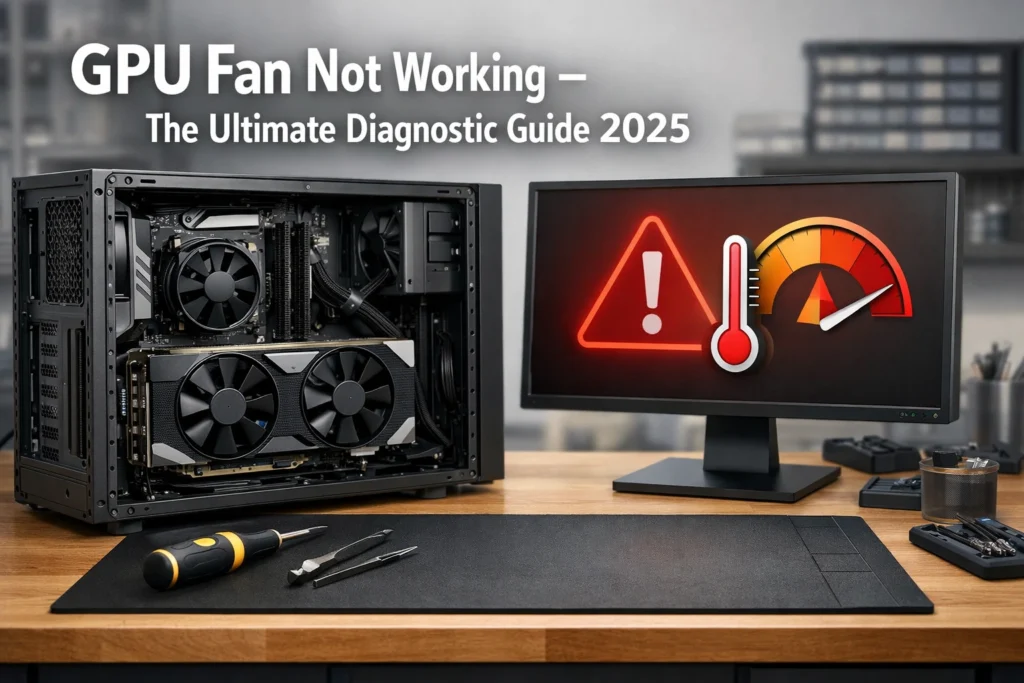

The graphics card is the crown jewel of any modern PC. Whether you are rendering 4K video, training a neural network, or playing Cyberpunk 2077 at Max settings, the GPU is under immense thermal pressure. The only things standing between your expensive silicon and a permanent “thermal death” are those plastic fans.
When you notice a GPU fan not working, your pulse probably quickens. You might see a black screen, feel heat radiating from your case, or hear a strange grinding noise. However, it is vital to understand that heat management is a multi faceted issue if your fans are working but temps are still high, you may need to investigate GPU overheating causes and fixes to ensure your thermal paste and airflow are also optimized.
The Zero RPM Evolution Understanding Modern Logic
In the past, PC fans were “dumb.” They turned on when the power was on and stayed on. Today, GPUs are incredibly sophisticated.
What is 0dB Technology?
Manufacturers like ASUS, MSI, and Sapphire have spent millions developing “silent” cooling. This feature, often called Zero RPM Mode, ensures that the fans remain completely still until the GPU core reaches a “trigger temperature” usually between 55°C and 62°C.
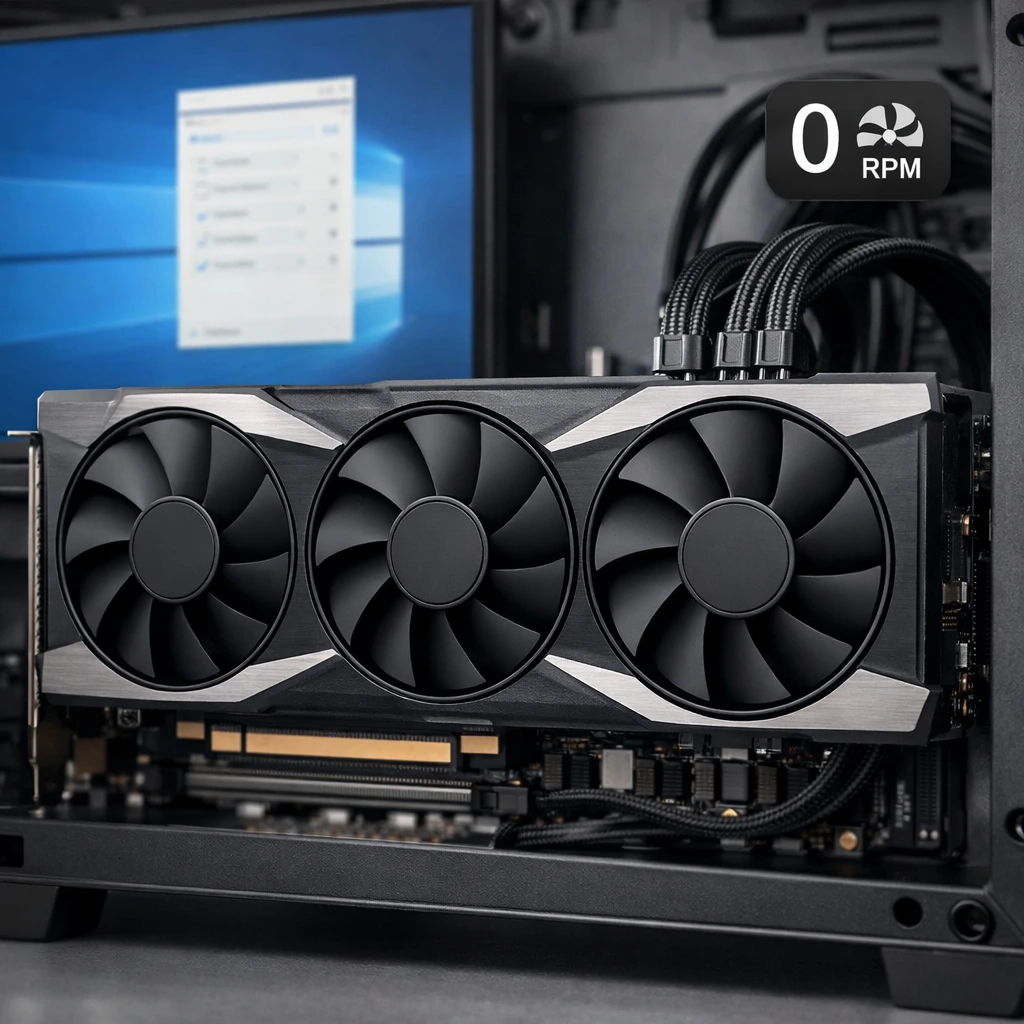
If you are just browsing Reddit or using Discord, your GPU fans should be off. This isn’t a bug it’s a feature designed to
- Reduce ambient noise.
- Prevent dust buildup.
- Extend the life of the fan bearings.
The Hysteresis Factor
Ever notice your fans spinning up and down repeatedly? This is called Hysteresis. The GPU waits until it hits 60°C to start the fans, but it won’t turn them off until the card drops back down to 45°C. This prevents the fans from “fluttering” on and off rapidly. Understanding this logic is the first step in diagnosing a perceived “failure.”
Software Level Diagnostics Forcing the Breath
If your GPU is hitting 80°C and the fans are still stationary, we look to the software. The communication between the Windows OS and the GPU’s PWM (Pulse Width Modulation) controller can often become corrupted.
Forcing Control via MSI Afterburner
MSI Afterburner is the most vital tool in your arsenal. It bypasses the card’s default BIOS logic and talks directly to the fan controller.
- Installation: Download and install the latest stable version.
- Manual Override: Click the “User Define” gear icon. Look for the “Fan” tab.
- The Fan Curve: Create a “Checklist Curve.” Set the fans to 100% speed at 50°C. If the fans kick in, your hardware is fine, but your VBIOS fan profile was likely stuck or incorrectly configured.
The DDU Nuclear Option
Display Driver Uninstaller (DDU) is a utility that wipes every trace of a GPU driver. Standard uninstalls leave behind “registry crumbs” that can keep a fan lock bug alive.
- Process: Boot into Windows Safe Mode. Run DDU. Select “Clean and Restart.”
- Fresh Install: Reinstall the drivers from the official Nvidia or AMD site. Do not let Windows Update install the drivers for you they are often outdated versions that lack proper fan control hooks.
Power Supply Integrity Volts Amps and Rails
A fan is a motor. Motors require a “surge” of current to start spinning from a dead stop. According to official Nvidia Power Supply guidelines, ensuring your PSU meets the minimum wattage and stable rail voltage is critical for all onboard components, including the cooling system.
PCIe Cable Distribution
Many users “Daisy Chain” their GPU power. This means using one cable that splits into two 8 pin headers. High end cards (RTX 30 series and 40 series) can pull over 300 watts. A single PCIe cable is only rated for 150 watts.
- Fix: Use two or three separate cables from your PSU to your GPU. This ensures stable voltage to the fan headers located on the GPU’s PCB.
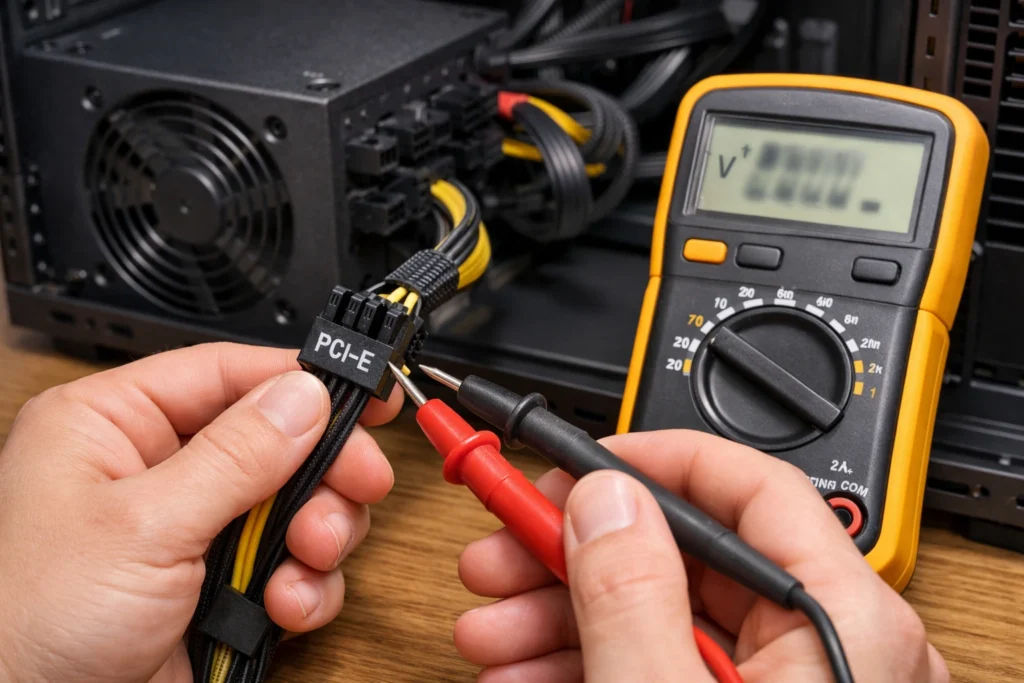
The PSU “Brownout”
If your fans spin for a second at boot up but then die and never return, your PSU might be failing the “Power Good” signal check. Test your GPU in a friend’s PC. If the fans work there, your PSU is the culprit.
Physical Mechanical Troubleshooting
If the software says “100%” but the fans remain still, we must look at the physical hardware.
The Finger Spin Test
With the PC powered off, give the fan a gentle flick.
- The Healthy Fan: It should spin smoothly and come to a gradual stop.
- The Bad Bearing: If it feels “notchy,” “crunchy,” or stops instantly, the bearing is shot.
- The Obstruction: Sometimes a tiny screw or a zip tie from your cable management has migrated into the fan shroud. Check the “clearing” between the blade and the heatsink.
Dust and “Stiction”
Dust combines with humidity to create a “gunk” that acts like glue. This creates Stiction (static friction). Use a can of compressed air, but hold the fan still with your finger. Allowing a fan to spin at 10,000 RPM from compressed air can create an electrical back feed that fries the GPU’s fan header.
Brand Specific Quirks (ASUS, Gigabyte, MSI, EVGA)
Not all GPUs are created equal. Different manufacturers use different controllers.
- ASUS: Often includes a “Dual BIOS” switch (Quiet vs. Performance). If the switch is stuck in the middle, the fans may stop working entirely.
- Gigabyte: Known for the “Middle Fan Reverse” design. The middle fan spins in the opposite direction. If it gets out of sync, the BIOS might stop all three fans as a safety precaution.
- EVGA: Their iCX technology uses multiple sensors. A single failing thermal pad on a memory chip can sometimes “trick” the fans into staying off or stuck at 100%.
Hardware Surgery Replacing the Motor
If a motor is burnt out, you have two choices: RMA the card (weeks of waiting) or fix it yourself (30 minutes).
Sourcing Parts
On the back of your GPU fan, there is a sticker (e.g., Everflow T129215SU). Search this specific model on eBay. You can usually buy a set of three fans for $20.
The Replacement Steps
- Remove the tiny screws along the side of the plastic shroud.
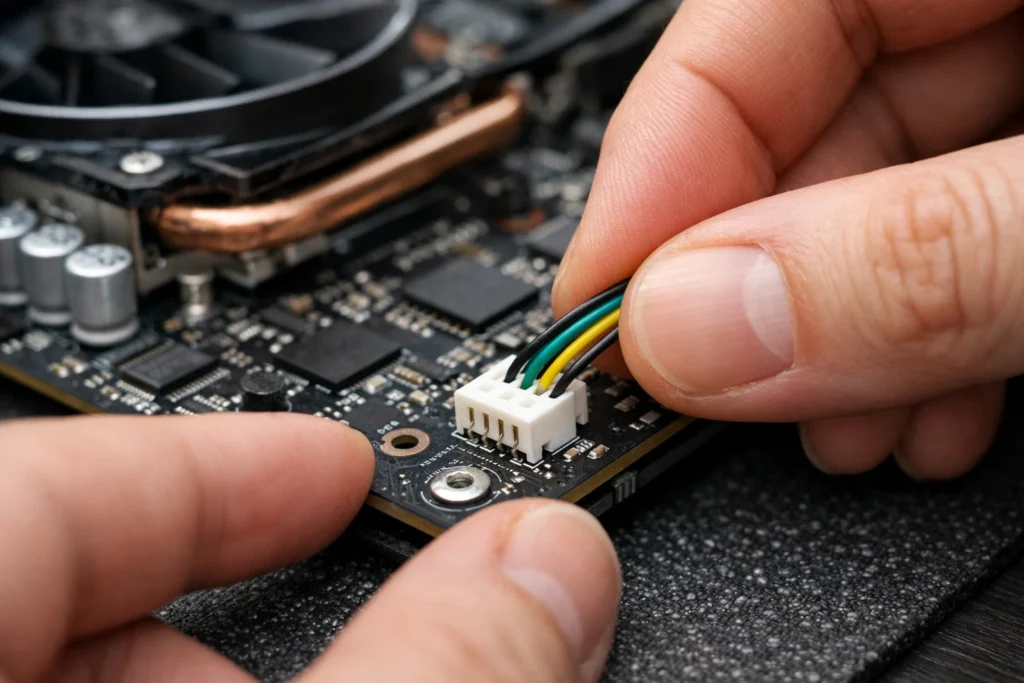
- Unplug the 4 pin mini PWM header from the board.
- Swap the fans.
- Important: Do not touch the heatsink or remove it unless you plan on replacing the thermal paste. Replacing fans is usually a “surface level” job.
The “Deshroud” Mod The Professional’s Secret
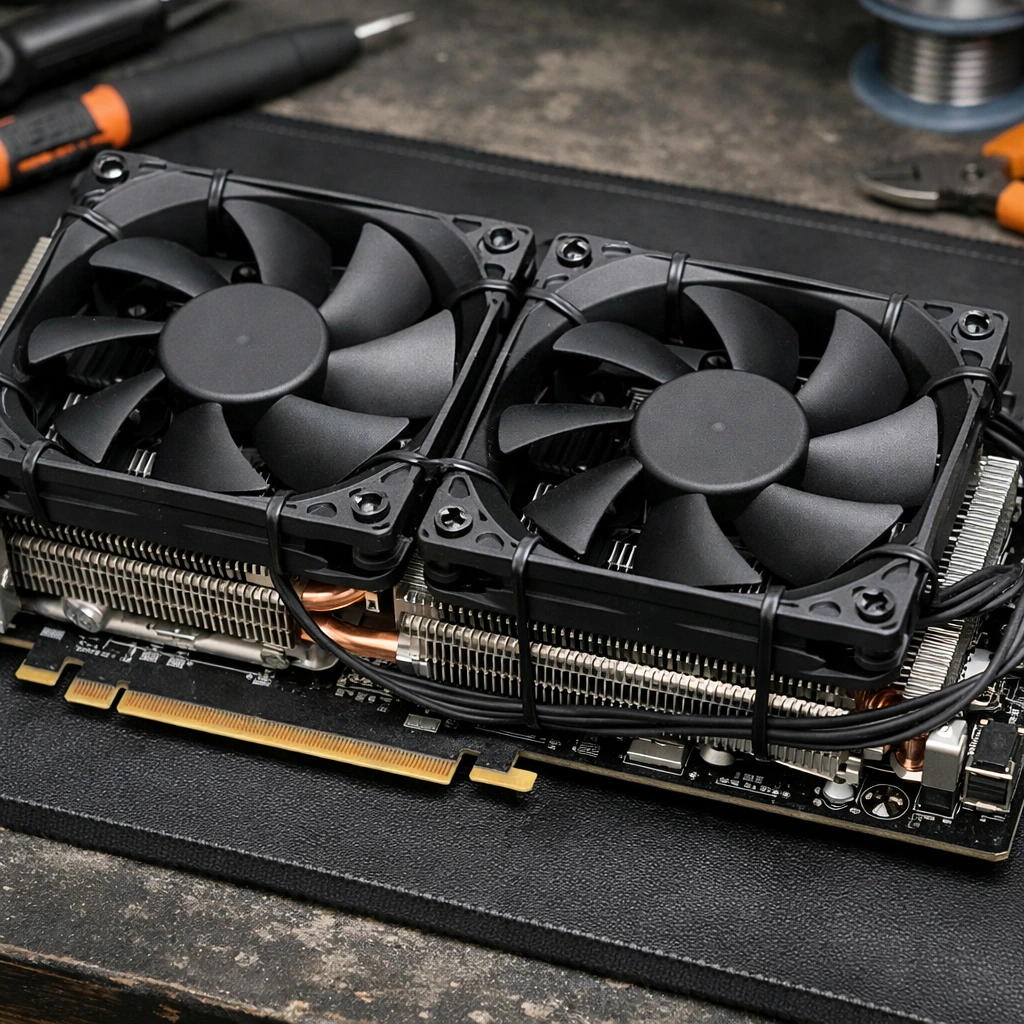
If you want better than factory cooling and your fans are dead, do a Deshroud.
- Remove the plastic shroud and the original fans.
- Take two 120mm Noctua or Arctic fans.
- Zip tie them directly to the metal fins of the GPU heatsink.
- Use a “GPU to Standard Fan” adapter cable to plug them into the card, or simply plug them into your motherboard and control them via FanControl software.
- Result: 10°C lower temps and near silence.
VBIOS Flashing The Last Resort
Sometimes, the “Fan Table” inside the GPU’s own BIOS is corrupted.
- The Fix: Using a tool like NVFlash (for Nvidia) or amdvbflash (for AMD), you can re flash the factory BIOS onto the card.
- Warning: This is high risk. If the power cuts out during a flash, the card is “bricked.” Only do this if you have a CPU with integrated graphics so you can see the screen to fix it.
Conclusion
A GPU fan not working is a solvable puzzle. From the simple “Zero RPM” settings to the advanced “Deshroud Mod,” there is almost always a way to save your card. Start with the software, check your power cables, and only move to hardware replacement when you are certain the motor has failed. By following these easy diagnostics and repair steps, you ensure your gaming rig stays cool, quiet, and powerful for years to come.
FAQ Section
1. Is it normal for my GPU fans to be completely still when I first turn on my PC?
Yes, it is often normal. Many modern GPUs perform a “Fan Test” where they spin for 2 3 seconds at boot up and then stop. They will remain stationary until you start a GPU intensive task like gaming or video rendering, thanks to Zero RPM technology. If they don’t spin during the initial boot sequence at all, then you should begin the physical diagnostic steps.
2. Can a dead GPU fan cause my computer to crash or show a blue screen (BSOD)?
Absolutely. If the fans aren’t working, the GPU core will reach its maximum thermal limit (usually around 90°C 100°C). To protect itself from melting, the card will trigger an emergency shutdown, which results in a black screen, a system freeze, or a BSOD. For more on preventing these crashes, see our guide on GPU overheating solutions.
3. How do I force my GPU fans to stay on all the time?
You can override the “Silent Mode” using software like MSI Afterburner. Go to the Fan settings and disable “Auto” mode. By setting a manual fan speed (e.g., 40%), you ensure the fans never stop, which can actually help extend the life of your card by keeping the idling temperatures lower.
4. My GPU has three fans, but only one is spinning. Is it broken?
Not necessarily. High end cards from brands like ASUS and Gigabyte often have independent fan headers. The card may only spin the fan located directly over the GPU core if the VRAM and VRM (Voltage Regulator Modules) are still cool. However, if the card is under heavy load and only one fan is working, the other two motors may have failed.
5. Can I use WD 40 to fix a stuck GPU fan?
No! Never use standard WD 40 on PC components. WD 40 is a solvent/degreaser, not a long term lubricant. It can gunk up the motor even more over time and is potentially conductive or flammable. Use synthetic sewing machine oil or silicone based lubricant specifically designed for high speed bearings.
6. Is it safe to play games if one fan is broken but the other is working?
It is a risk. While the working fan might keep the GPU core cool enough to prevent a shutdown, other components like the Memory (VRAM) might overheat without you knowing, as they don’t always have temperature sensors. It is best to undervolt the card or limit your FPS until the fan is replaced.
7. What is “Thermal Throttling,” and how do I know if it’s happening?
Thermal throttling is when your GPU automatically lowers its “Clock Speed” (performance) to reduce heat. If you notice your FPS suddenly dropping from 100 to 30 after ten minutes of gaming, and your fans aren’t spinning, your card is throttling to stay alive.
8. Does opening my GPU to fix the fan void the warranty?
In the USA, “Warranty Void if Removed” stickers are generally unenforceable due to the Magnuson Moss Warranty Act. However, in other regions, breaking the seal might void your protection. Always check your manufacturer’s local policy before unscrewing the shroud.