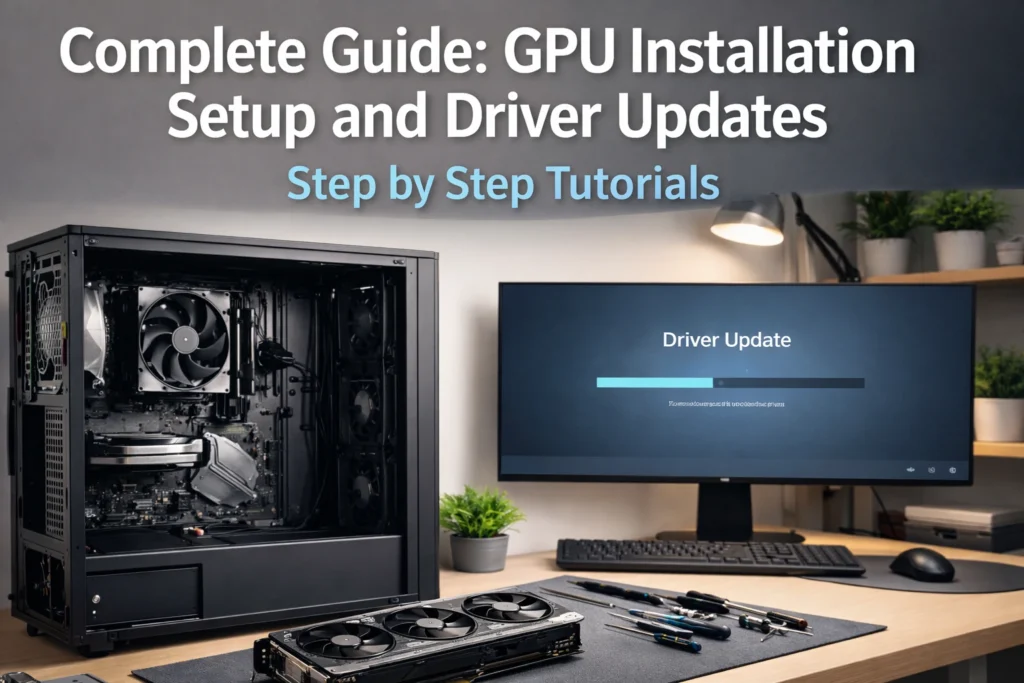

The Graphics Processing Unit (GPU) is the heart of any modern PC, whether you are a hardcore gamer, a 3D designer, or a video editor. However, even the most powerful RTX or Radeon card is just a paperweight without proper setup. This Complete Guide GPU Installation Setup and Driver Updates Step by Step Tutorials aims to demystify the process, ensuring your hardware runs at peak efficiency from day one.
Preparation Identifying Your Hardware and Requirements
Before touching your hardware, you must know what you are working with. Many performance issues arise because users try to install incompatible software.
How to check your current GPU model in Windows
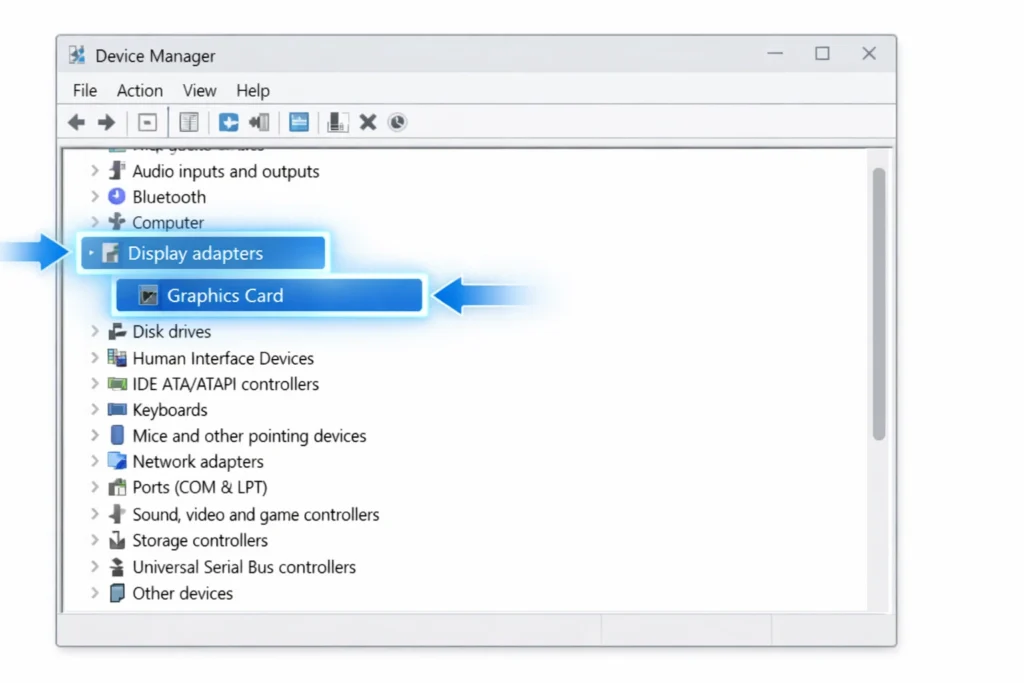
To identify your card, right click the Start button and select Device Manager. Expand the Display adapters section to see your GPU’s name. Alternatively, press Win + R, type dxdiag, and navigate to the “Display” tab for a detailed report on your VRAM and driver version.
Verifying Power Supply PSU
Modern GPUs are power hungry. Ensure your Power Supply Unit (PSU) has enough wattage and the correct 8 pin or 16 pin connectors. A 300W office PC cannot support a high end RTX 4080 without a significant power upgrade.For more detail check Power Supply Calculator
When to use Display Driver Uninstaller DDU
If you are switching from NVIDIA to AMD a simple uninstall isn’t enough. Residual files can cause “Blue Screen of Death” BSOD errors. Use a tool like DDU in Safe Mode to wipe old registries before installing your new hardware.
Physical GPU Installation Setup and Driver Updates
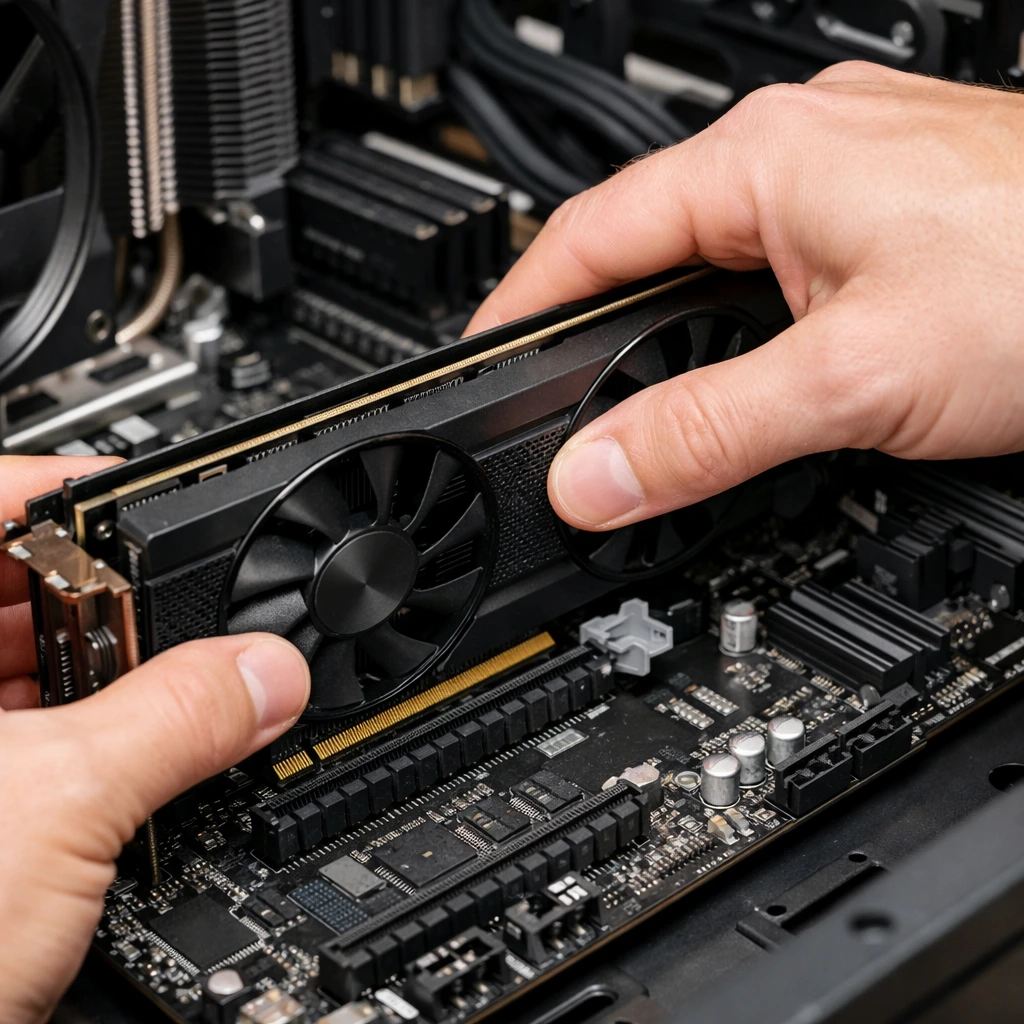
Installing the physical card is the most nerve wracking part for many, but it is a straightforward mechanical process.
- Prepare the Case: Power down your PC, flip the PSU switch to “Off,” and unplug the power cable. Open the side panel and remove the metal expansion slot covers on the back of the case that align with your top PCIe x16 slot.
- Seating the Card: Open the plastic latch at the end of the PCIe slot on the motherboard. Align the GPU’s gold contacts with the slot and press down firmly until you hear a “click.”
- Secure and Power: Screw the GPU bracket into the case. Connect the power cables from your PSU. If you have a massive modern card, consider an anti sag bracket to prevent the weight from damaging your motherboard over time.
How to Update NVIDIA Graphics Drivers

NVIDIA offers two primary ways to keep your system current. For most users, the NVIDIA App (formerly GeForce Experience) is the easiest path. For a deeper dive, you can check out this detailed guide on how to update NVIDIA drivers properly.
Automatic Updates Once installed, the NVIDIA App will notify you when a new driver is available. With a single click, it performs an “Express Installation,” handling everything in the background.
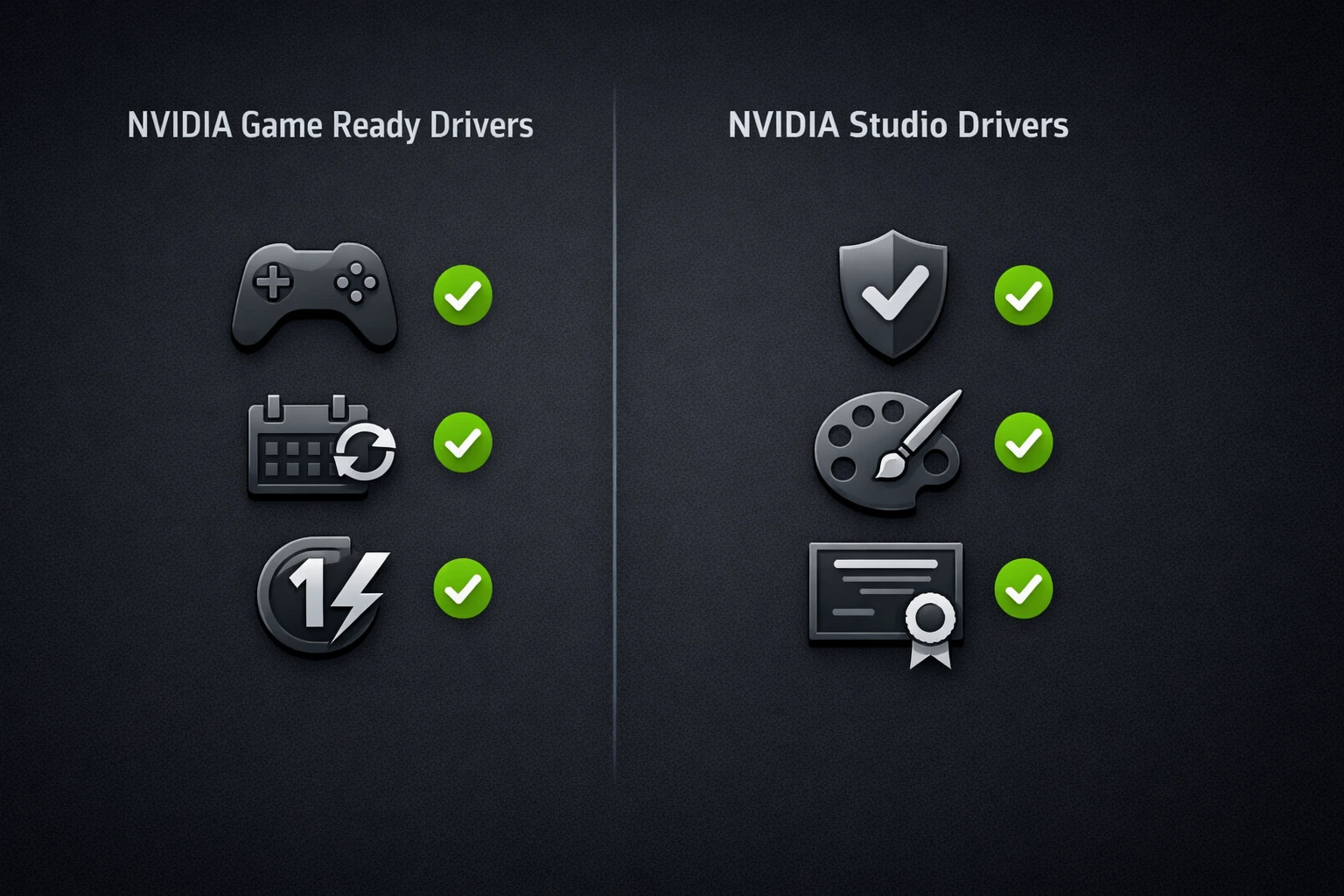
Manual Installation Game Ready vs. Studio Drivers If you prefer manual control, visit the official NVIDIA download page. You will see two options
- Game Ready Drivers: Optimized for the latest game releases and day one patches.
- Studio Drivers: Prioritize stability and performance for apps like Adobe Premiere, Blender, and AutoCAD.
Choose the one that fits your primary workflow. Most users should stick with Game Ready for the best all around performance.
Managing AMD Radeon and Intel Graphics Updates
AMD and Intel have made significant strides in their software suites, offering tools that rival NVIDIA’s ecosystem.
AMD Adrenalin Software AMD users should download the Adrenalin Edition software. It features an “Auto Detect” tool that scans your system and suggests the correct WHQL certified drivers. Within the app, the “Tuning” tab also allows for one click performance boosts and undervolting.
Intel Driver & Support Assistant (DSA) With the rise of Intel Arc and Iris Xe graphics, Intel has streamlined updates via the DSA tool. It runs in your system tray and checks for updates across your entire Intel chipset, not just the GPU.
Post Setup Optimization Getting the Best Performance
Don’t stop once the drivers are installed. Windows often defaults to safe settings that hold back your hardware.
Verify Refresh Rate Right click your desktop, go to Display Settings then Advanced Display, and ensure your Refresh Rate is set to its maximum e.g., 144Hz or 240Hz. Many users unknowingly run 144Hz monitors at 60Hz for years.
Enable Sync Technologies If you have a compatible monitor, enable NVIDIA G Sync or AMD FreeSync in the respective control panels. This eliminates screen tearing. Also, check your BIOS to enable Resizable BAR, which allows the CPU to access the entire GPU frame buffer at once, boosting FPS in modern titles.
Troubleshooting Common GPU Installation Issues
“No Signal” on Monitor If your screen is black after installation, ensure the HDMI or DisplayPort cable is plugged directly into the GPU, not the motherboard’s I/O panel.
Driver Rollbacks If a new update causes flickering or crashes, you can “Roll Back” the driver. Go to Device Manager, right click your GPU, select Properties, navigate to the Driver tab, and click Roll Back Driver.
Conclusion
Maintaining your graphics hardware is an ongoing cycle of physical care and software vigilance. By following this Complete Guide GPU Installation, Setup & Driver Updates Step by Step Tutorials you have successfully moved from the unboxing phase to a fully optimized, high performance machine. Whether you are leveraging the new unified NVIDIA App, exploring AMD’s FSR 4 capabilities, or stabilizing an Intel Arc build, the core principles remain the same clean installations, proper power delivery, and post setup calibration.
Remember that driver updates are not just about fixing things they are about unlocking new features and security patches that protect your investment. Keep your shader caches clear, monitor your thermals, and your GPU will provide a smooth, immersive experience for years to come.
FAQ Section
Do I really need to use DDU every time I update my drivers?
No. For standard updates e.g., NVIDIA to NVIDIA the built in “Express” or “Clean Install” options in the software are sufficient. You should only use DDU Display Driver Uninstaller if you are switching brands NVIDIA to AMD experiencing persistent crashes, or rolling back from a corrupted version.
What is the difference between NVIDIA Game Ready and Studio drivers?
Game Ready Drivers are released frequently to coincide with new game launches, providing day one optimizations and bug fixes for gamers. Studio Drivers are released less often and prioritize rock solid stability for creative apps like Adobe Premiere, Maya, and DaVinci Resolve.
Why is my GPU not showing up in Device Manager after installation?
This is usually a power or seating issue. Double check that the GPU is fully clicked into the PCIe slot and that all power cables 8 pin or 12VHPWR are pushed in until they flush. If it still doesn’t appear, ensure your BIOS is set to use “PCIe” as the primary display output rather than the integrated graphics iGPU.
Can I update my drivers without the NVIDIA App or AMD Adrenalin software?
Yes. You can visit the officialNVIDIA,AMD, orIntel websites, manually select your model, and download the standalone .exe installer. This is often referred to as a “bloat free” installation.
How often should I check for GPU driver updates?
Ideally, check once a month or whenever you purchase a brand new AAA game. New titles often require specific driver “hooks” to enable features like Frame Generation or Ray Reconstruction properly.
Is it safe to install Optional or Beta drivers?
Optional drivers common with AMD contain the latest fixes but haven’t gone through full WHQL Microsoft certification yet. They are generally safe but may have minor bugs. Stick to WHQL certified drivers if stability is your absolute priority.