

Whether you are trying to capture a receipt, save a funny meme, or document a software error for tech support, knowing how to screenshot on laptop (Windows) is a fundamental skill. While it seems simple, Windows offers a variety of ways to capture your screen, ranging from instant full screen snapshots to precise, cropped images.
In this guide, we will walk through every method available on Windows 10 and 11, ensuring you can capture exactly what you need, every time.
The Fastest Way Using the Print Screen PrtScn Key
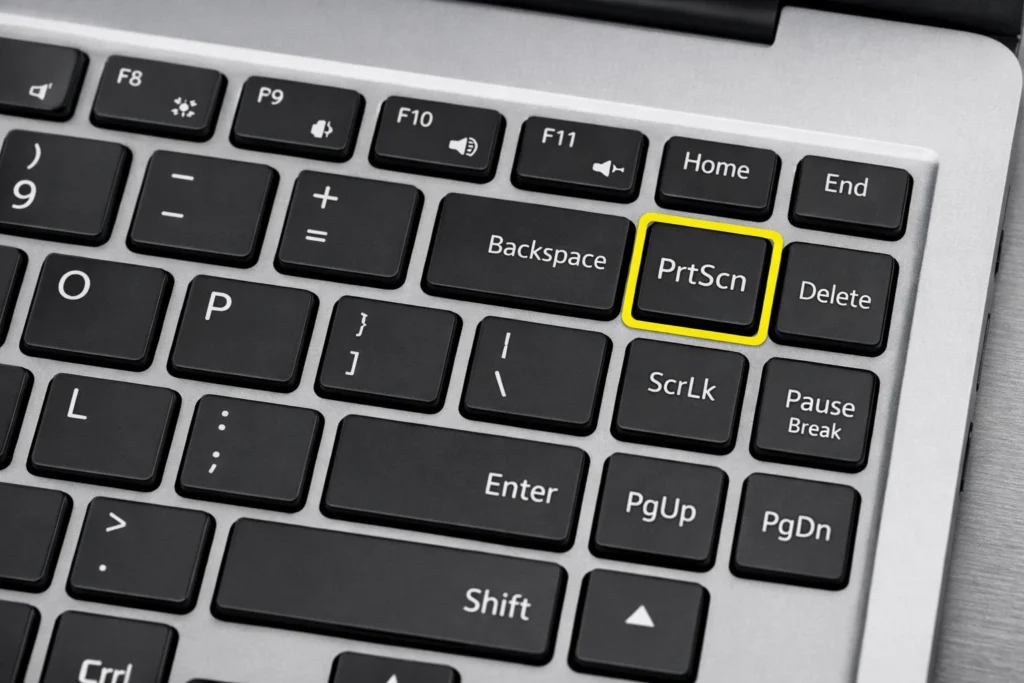
The most traditional method involves the PrtScn key. On most laptops, you will find this key in the top right row of your keyboard. However, its behavior has evolved significantly in recent versions of Windows.
Copying to Clipboard vs Saving as a File
If you simply tap the PrtScn key, Windows captures your entire screen and copies it to your clipboard. You won’t see a file appear instead, you must “paste” (Ctrl + V) the image into a program like Microsoft Paint, Word, or Slack.
For a faster workflow, use the Windows Key + PrtScn. When you press these together, your screen will momentarily dim. This is a visual cue that Windows has automatically saved a PNG file of your entire desktop directly to your “Screenshots” folder.
Capturing the Active Window Only Alt + PrtScn
Sometimes, you don’t want to show your messy desktop or open browser tabs. If you want to capture only the specific window you are currently using, press Alt + PrtScn. This copies just the active window to your clipboard, making your screenshots look professional and focused.
Using the Snipping Tool The Professional Choice
If you need precision, the Snipping Tool (formerly Snip & Sketch) is the gold standard. It allows you to select a specific area of the screen rather than capturing the whole thing. For those using the latest operating system, you can explore theofficial Microsoft guide on using Snipping Tool to see new features like video screen recording and text extraction.
How to Trigger the Modern Snip Win + Shift + S
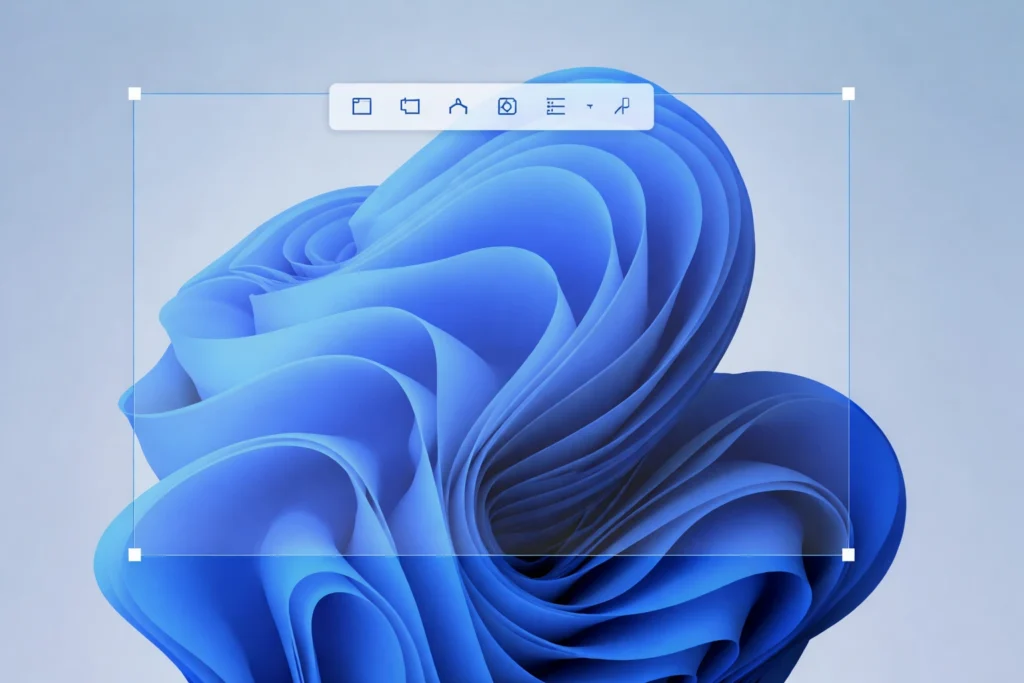
The fastest way to access advanced features is the shortcut Windows Key + Shift + S. This opens a small overlay at the top of your screen. Your cursor will turn into a crosshair, allowing you to click and drag over the area you wish to capture.
Exploring Snip Modes Rectangular Freeform and Window
Once the overlay appears, you can choose from four distinct modes
- Rectangular Snip: The default mode for drawing a box.
- Freeform Snip: Draw any shape around an object.
- Window Snip: Select one specific window to capture.
- Full screen Snip: Captures everything.
Once you release the mouse, a notification appears. Clicking it allows you to annotate, highlight, or crop the image further before saving.
Laptop Specific Shortcuts HP Dell Lenovo and more
Laptops often have condensed keyboards, which can change how you access the how to screenshot on laptop (Windows) functionality.
The Role of the Function Fn Key
On many HP, Dell, and Lenovo laptops, the PrtScn key is shared with another command (like F10 or Home). If pressing PrtScn does nothing, try holding the Fn key at the same time. For example, Fn + Windows Key + PrtScn is a common requirement for modern ultrabooks.
What to do if your Laptop Lacks a PrtScn Key
Some smaller laptops or 2 in 1 devices don’t have a dedicated Print Screen button. In these cases, you can use the On Screen Keyboard or rely entirely on the Win + Shift + S shortcut, which does not require the PrtScn key to function.
Advanced Built in Windows Methods
Capturing Gaming Moments with Xbox Game Bar
If you are a gamer, the Xbox Game Bar is your best friend. Press Windows Key + G to open the overlay. From here, you can click the camera icon to take a screenshot. This tool is specifically designed to work within full screen applications where other shortcuts might fail.
Taking Screenshots on Windows Tablets Surface Pro
If you are using a Windows tablet without a keyboard attached, you can still take a screenshot. Much like a smartphone, press the Power Button and Volume Up button simultaneously. The screen will dim, and the image will be saved to your Screenshots folder.
Where are my Screenshots Saved?
Locating the “Screenshots” Folder
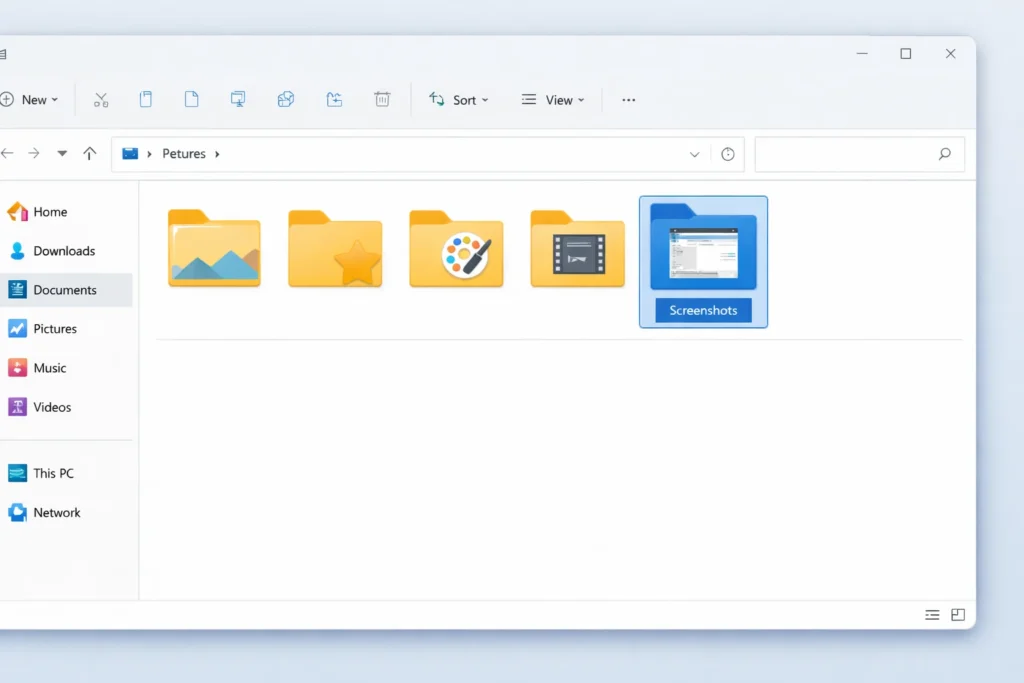
If you use the Win + PrtScn method, your files are tucked away in a specific spot. Open your File Explorer, go to Pictures, and then open the Screenshots subfolder.
Managing OneDrive and Cloud Auto Saves
If you use OneDrive, you might see a pop up asking if you want to save screenshots to the cloud. If you agree, your screenshots will be available on all your devices. You can find these in the OneDrive/Pictures/Screenshots directory.
Troubleshooting Common Screenshot Issues
Why is my Screen Dimming but No File is Saved?
This usually happens if the folder permissions have been altered. Ensure your “Pictures” folder is not set to “Read Only.” Additionally, check if your OneDrive storage is full, as this can sometimes hang the saving process.
Fixing a Broken or Disabled PrtScn Key
If your key is physically broken, you can remap the function. Go to Settings > Accessibility > Keyboard and toggle the option that says “Use the Print screen button to open screen snipping.” This ensures that even a faulty key can trigger the modern, more reliable Snipping Tool.
Conclusion
Mastering how to screenshot on laptop (Windows) is about more than just hitting a single button it is about choosing the right tool for the specific task at hand. Whether you prefer the lightning fast efficiency of the Windows + PrtScn shortcut for full-screen captures or the surgical precision of the Snipping Tool for detailed work, Windows provides a robust suite of built in options to suit every workflow.
By understanding these various methods—including laptop specific variations and cloud integration via OneDrive—you can streamline your productivity and share information more effectively. Remember, if your standard keys aren’t responding, the modern Win + Shift + S command is almost always the most reliable fallback for any Windows 10 or 11 device.
FAQ Section
Q: How do I take a scrolling screenshot on Windows?
Windows does not have a native “scrolling screenshot” feature. You will need a browser extension like “GoFullPage” or a third party tool like ShareX.
Q: How do I screenshot without the Windows Key?
You can use the Fn + PrtScn combination or simply search for “Snipping Tool” in the Start Menu and use the “New” button within the app.
Q: Why do my screenshots look blurry?
This often happens on high resolution laptop screens due to “Display Scaling.” Saving files as PNG instead of JPG can help maintain clarity.
Q: Can I record my screen instead of taking a photo?
Yes! Use the shortcut Win + Alt + R to start a screen recording via the Xbox Game Bar, or use the “Record” toggle within the Snipping Tool (Windows 11 only).