

Keeping your laptop current is more than just getting new emojis or a fresh taskbar. In 2025, knowing how to update laptop (Windows) systems is your primary defense against zero day exploits and the best way to reclaim system performance. Whether you are running Windows 10 or the latest version of Windows 11, the process has become more streamlined, yet laptop users face unique challenges like battery drain and hardware compatibility.
In this guide, we will walk through every method to keep your machine updated, from the standard settings menu to advanced troubleshooting for those stubborn “Update Failed” errors.
The Standard Method Using Windows Update Settings
The most reliable way to maintain your system is through the built in Windows Update utility. Microsoft pushes “Patch Tuesday” updates once a month, but critical security fixes can arrive at any time.
How to Manually Check for Updates
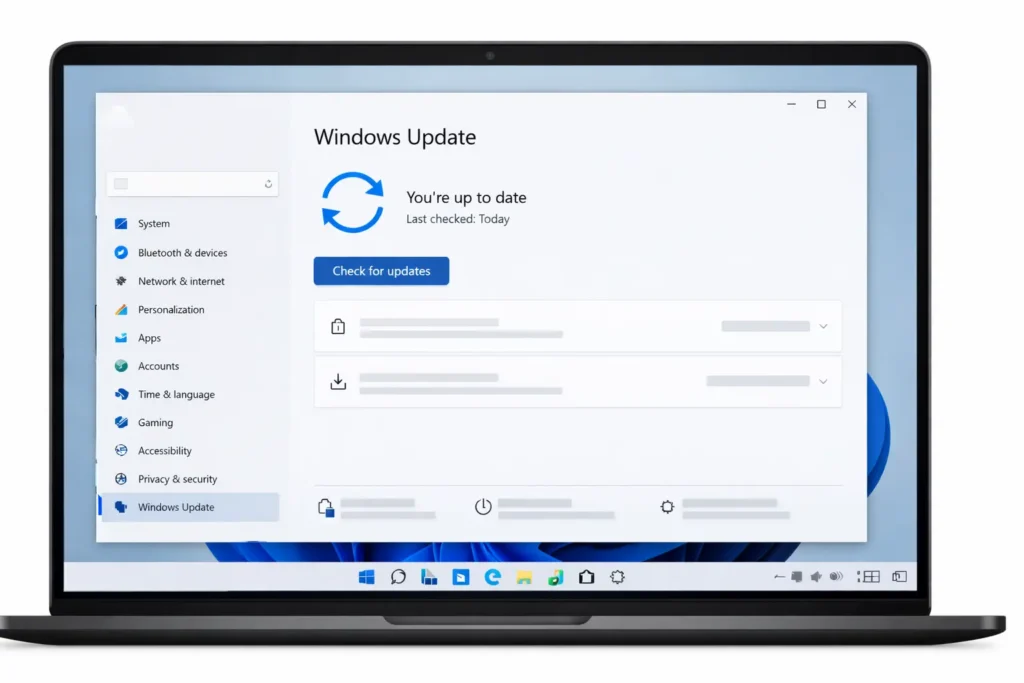
To begin, click the Start button and select the Settings (gear icon). From there, navigate to Windows Update (or Update & Security on Windows 10).
Click the Check for updates button. If updates are available, Windows will begin downloading them automatically. For laptop users, ensure you are connected to a stable WiFi network, as these files can often exceed several gigabytes.
Understanding Optional Updates and Drivers
Sometimes, your laptop might feel “off”—perhaps the webcam is glitchy or the trackpad is lagging. These fixes are often tucked away in Advanced Options > Optional Updates. These are not installed automatically but contain vital driver updates for your specific hardware components.
Setting Active Hours to Avoid Random Restarts
There is nothing worse than your laptop rebooting in the middle of a presentation. You can prevent this by configuring Active Hours. This feature tells Windows when you are typically using the device, ensuring it only restarts to apply updates during your downtime.
Upgrading to Windows 11 from Windows 10
If you are still on Windows 10, you may see a banner inviting you to upgrade. This is a significant leap in both design and security.
Checking Compatibility TPM 2.0 and Secure Boot
Windows 11 requires a specific security chip called TPM 2.0. Most laptops built after 2018 have this hardware integrated into the processor. To see if your specific model qualifies for the latest features, you can check the official Windows 11 specifications and system requirements provided by Microsoft. If your laptop is “unsupported,” it is usually safer to stay on Windows 10, which will receive support until late 2025.
Before upgrading or installing major Windows updates, it is important to know how to check laptop specs so you can confirm your processor, RAM, and storage meet the requirements.
Using the Windows 11 Installation Assistant
If the update isn’t appearing in your settings but you know your laptop is compatible, you can “force” the update using the Windows 11 Installation Assistant. This tool bypasses the queue and begins the upgrade immediately.
Laptop Specific Update Requirements
Laptops aren’t just portable desktops; they have power management constraints that can break an update cycle.
Battery vs AC Power Why it Matters
Never attempt a major OS update on battery power alone. If your laptop dies during a BIOS update or a kernel rewrite, it could “brick” your device, rendering it unbootable. Always plug into a wall outlet before clicking “Restart now.”
Managing Sleep Settings During Downloads
By default, laptops are set to sleep when the lid is closed. This often pauses the download. If you are downloading a large update, go to Power & Sleep settings and ensure the laptop is set to “Never” sleep while plugged in, or simply leave the lid open until the process completes.
Troubleshooting Stuck or Failed Updates
If your update has been stuck at 99% for three hours, something is wrong. Usually, it’s a corrupted temporary file.
Using the Windows Update Troubleshooter
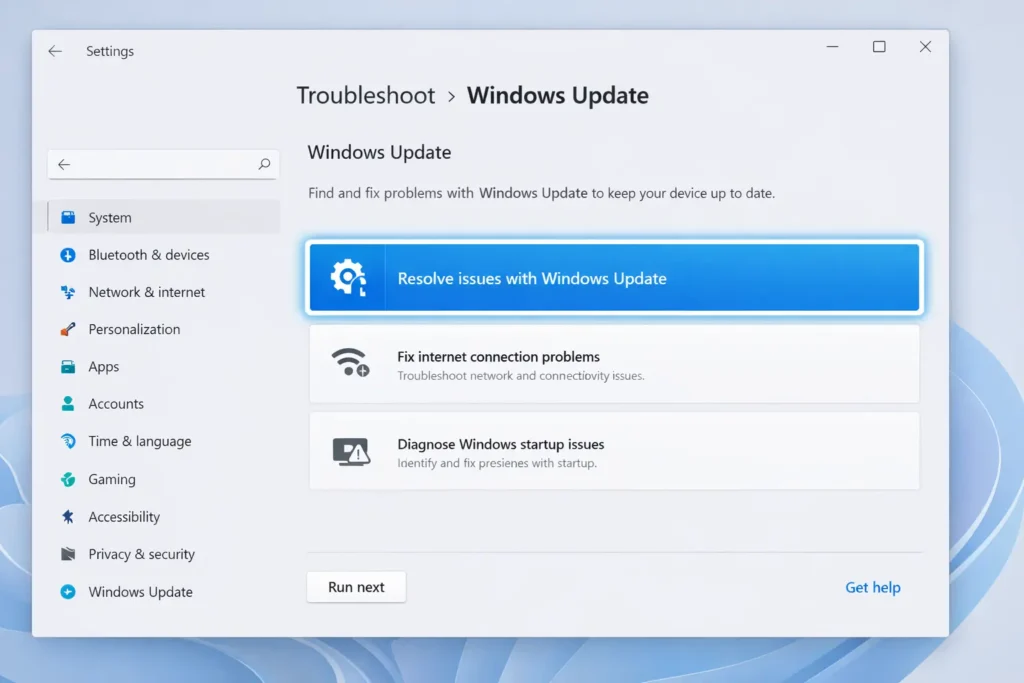
Windows has a built in doctor. Go to Settings > System > Troubleshoot > Other troubleshooters and run the Windows Update tool. It automatically clears the cache and restarts the update services.
How to Reset Windows Update Components
If the troubleshooter fails, you can manually reset the system. This involves opening the Command Prompt (Admin) and typing a series of commands to stop the ‘bits’ and ‘wuauserv’ services.
Clearing the Software Distribution Folder
This folder is where Windows stores download files. If a download is corrupted, Windows will keep trying to use the broken file. Navigate to C:\Windows\SoftwareDistribution and delete everything inside. Don’t worryWindows will simply redownload fresh versions of what it needs.
Updating Beyond the OS BIOS and Firmware
Sometimes, the issue isn’t Windows; it’s the laptop’s “brain” (the BIOS).
Why Manufacturer Apps are Essential
Brands like Dell (Dell Command Update), Lenovo (Vantage), and HP (Support Assistant) have their own software. These apps update your firmware and BIOS, which Windows Update sometimes misses. These updates improve battery efficiency and heat management.
Check your manufacturer’s app at least once every three months to ensure your hardware is running the latest firmware.
Conclusion
Understanding how to update laptop (Windows) systems is the most effective way to ensure your device remains fast, secure, and compatible with the latest software. By moving beyond the basic “Check for Updates” button and managing your BIOS, drivers, and power settings, you take full control of your hardware’s longevity.
Remember the Golden Rules of Laptop Updates:
- Stay Plugged In: Never risk a firmware update on battery power.
- Check Manufacturer Apps: Windows Update doesn’t always catch brand specific BIOS fixes.
- Be Patient: Large cumulative updates can take time; don’t force a shutdown if the percentage seems stuck.
FAQ Section
1. How long does a Windows update usually take?
Minor security patches take 5–10 minutes. Major feature updates (like 24H2) can take 30 minutes to over an hour, depending on your SSD speed and internet connection.
2. Why is my laptop not showing the Windows 11 update?
Your laptop may lack TPM 2.0 support or have Secure Boot disabled. Check your compatibility using the PC Health Check app.
3. Is it safe to turn off my laptop during an update?
No. Interrupting an update can corrupt system files and prevent Windows from booting. If it’s been stuck for over 4 hours, only then should you consider a hard reset.
4. How do I update my laptop drivers for free?
The safest way is through Windows Update > Advanced Options > Optional Updates, or by downloading the official support assistant app from your laptop manufacturer (Dell, HP, Lenovo).
5. How can I speed up Windows updates?
Go to Delivery Optimization settings and allow downloads from other PCs on your local network. This can significantly throttle up download speeds if you have multiple Windows devices.