
Unboxing a brand new laptop is a thrilling experience, yet the initial “out of box” experience can feel overwhelming. Most users simply click “Next” on every screen, inadvertently agreeing to data tracking and cluttered desktops. Having your laptop basic settings explained clearly is the difference between a machine that runs smoothly for years and one that feels sluggish within weeks.
This guide will walk you through the essential configurations required to optimize performance, protect your privacy, and ensure your hardware lasts. Whether you are a student or a professional, mastering these fundamentals is the first step toward digital productivity.
Initial Startup and System Basics
When you first press the power button, your laptop enters the Out of Box Experience (OOBE). This is where the foundation is laid. It is tempting to breeze through this, but paying attention to the details here prevents headaches later.
Navigating the Out of Box Experience

During the first few minutes, you will be asked to select your region and keyboard layout. Ensure these are correct, as they affect how symbols appear when you type. If you are in the USA, selecting “English (United States)” ensures your currency and date formats align with local standards.
Connecting to WiFi and Creating a User Account
You will be prompted to connect to a network. While you can skip this to create a “Local Account,” connecting to WiFi allows the system to verify your OS license immediately. If you use a Microsoft or Apple ID, your System Preferences and files can sync across devices automatically, providing a seamless transition from your old computer.
Understanding Desktop vs Tablet Mode
Modern laptops, especially 2 in 1 devices, often switch between modes. The desktop layout is designed for mouse and keyboard use, while tablet mode optimizes the Taskbar and icons for touch. Knowing how to toggle these in the settings menu ensures you aren’t frustrated by disappearing buttons.
Optimizing Display and Visual Settings
Your screen is your primary interface. If the text is too small or the colors are too blue, you will face significant eye fatigue.
Adjusting Resolution and Scaling for Better Visibility
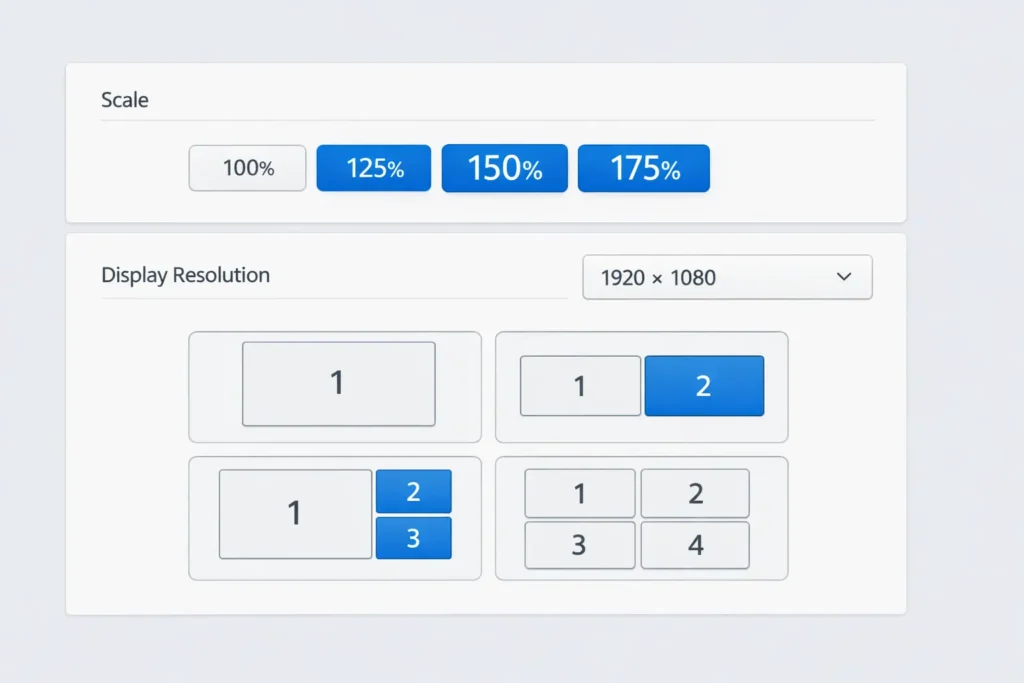
High resolution screens (like 4K) often make text look microscopic. Navigate to your display settings to adjust “Scaling.” Setting this to 125% or 150% allows you to maintain sharpness while making the interface readable.
Using Night Light to Reduce Eye Strain
One of the most vital laptop basic settings explained to new users is the blue light filter. Most modern OSs include a “Night Light” or “Night Shift” feature. This warms the color temperature of your screen in the evening, which helps preserve your natural sleep cycle.
Managing Multiple Monitors and Refresh Rates
If you plug into an external monitor via HDMI or USB C, you need to manage how the screens interact. You can “Duplicate” or “Extend” your desktop. Also, check your Refresh Rate; if your laptop supports 120Hz but is set to 60Hz, you are missing out on smoother animations.
Power Management and Battery Longevity
A laptop’s greatest asset is its portability, but poor power management can tether you to a wall outlet. Beyond just changing your power plan, understanding the chemistry of your battery is vital. Organizations like Battery University offer extensive research onhow to prolong lithium-based batteries, suggesting that keeping your charge between 20% and 80% is the “sweet spot” for hardware longevity.
Choosing the Right Power Plan Performance vs. Battery
Windows and macOS offer different “Power Plans.” If you are gaming or editing video, “Best Performance” is necessary. However, for everyday web browsing, “Balanced” or “Battery Saver” modes will significantly extend your time away from a charger by throttling the CPU slightly.
Sleep Hibernate and Shutdown What’s the Difference?
“Sleep” keeps your apps open using a tiny amount of power for an instant wake up. “Hibernate” saves your open apps to the hard drive and turns off power completely ideal for long breaks. “Shutdown” closes everything and clears the system RAM, which is the best way to resolve minor glitches.
Battery Health Settings and Limiting Charge Thresholds
Some manufacturers, like HP or Dell, include a “Battery Health” setting in their BIOS or support apps. If you mostly use your laptop at a desk, limiting the charge to 80% can double the lifespan of the lithium ion cells by preventing chemical stress from full charges.
Security and Privacy Configuration
Security should never be an afterthought. Protecting your data begins the moment you connect to the internet. Setting up biometrics via Windows Hello or Apple’s TouchID provides a hardware-level layer of protection. To ensure your device remains shielded from emerging threats, always verify that yourWindows Update service is active and fetching the latest security definitions.
Setting Up Biometrics and Windows Hello
Move beyond the traditional password. Setting up a fingerprint reader or facial recognition (biometrics) is not only faster but often more secure. It prevents “shoulder surfing” where people might glimpse your typed PIN in public spaces.
Configuring Privacy Settings and Telemetry
During setup, many companies enable “Diagnostic Data” or “Telemetry.” This sends information about your usage back to the manufacturer. If you value privacy, go to the Privacy & Security tab and toggle off personalized ads and location tracking where they aren’t strictly necessary.
Running Your First Windows Update and Driver Check
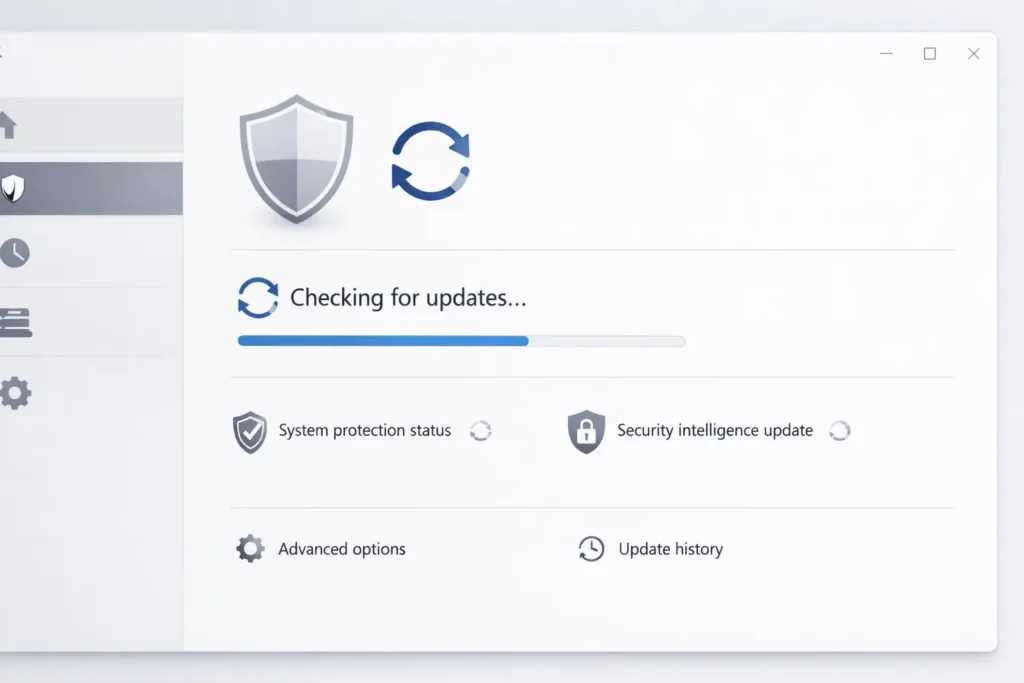
Even a “brand new” laptop has likely been sitting in a box for months. The first thing you should do is check for updates. This downloads the latest security patches and Drivers, ensuring your WiFi, graphics, and sound cards are compatible with the latest software.
Essential Software and Bloatware Removal
Manufacturers often get paid to pre install “trialware” on your machine. This is often referred to as bloatware.
Removing unnecessary software is one of the most effective ways to improve laptop performance, and it plays a key role in learning how to speed up a laptop over time.
Identifying and Uninstalling Pre installed “Junk”
Check your apps list for trial antivirus programs or games you didn’t ask for. These run in the background, consuming RAM and slowing down boot times. A clean machine is a fast machine; don’t be afraid to uninstall what you don’t use.
Choosing Your Default Browser and Essential Apps
While Edge and Safari are capable, you might prefer Chrome or Firefox. Once installed, ensure you set them as the “Default” in settings so that links from emails open in your preferred environment.
Setting Up Cloud Storage for Automatic Backups
Whether it’s OneDrive, iCloud, or Google Drive, setting up a sync folder is crucial. It ensures that if your laptop is ever lost or damaged, your documents and photos remain safe in the cloud.
Conclusion
Understanding laptop basic settings explained in this guide transforms your computer from a generic device into a personalized powerhouse. By taking thirty minutes to refine your display, power, and security settings, you ensure a faster, safer, and more comfortable user experience. Remember to periodically review these settings after major OS updates to keep your system in peak condition.
FAQ Section
1: Do I need to buy an antivirus for my new laptop?
For most users, the built in Windows Defender or macOS security features are sufficient if you practice safe browsing habits.
2: Why is my laptop fan so loud right after setup?
This is normal. Your laptop is likely indexing files and downloading background updates for the first time.
3: Can I change my username later?
Yes, but it is easier to set it correctly during the initial setup to avoid folder path issues in your user directory.
4: How do I make my battery last 10 hours?
Lower your brightness to 50%, use “Battery Saver” mode, and close background apps like Steam or Spotify.
5: Is it okay to leave my laptop plugged in overnight?
Yes, modern laptops have controllers that stop the charging process once the battery reaches 100%.