

You just installed the latest software update on your smartwatch, excited for new features and a smoother experience. But instead, you’re met with a frustrating surprise the battery is draining faster than ever. It barely makes it through the day, and you find yourself constantly checking the battery percentage, worried it won’t last. If this sounds familiar, you’re not alone. Many users notice their smartwatch battery draining fast after a software update, whether it’s an Apple Watch, a Samsung smartwatch, or another wearable.
Smartwatch Battery Draining Fast After Software Update? Here’s Why This sudden battery drain can be confusing and annoying, leaving you wondering if the update broke your device. But don’t worry. This is a common issue, and the solution is often much simpler than you think. In most cases, it’s not a hardware defect but a result of new settings or features that were enabled by default.
This guide is here to walk you through exactly why this happens and what you can do about it. We’ll cover everything from simple settings adjustments to managing power-hungry features. By the end, you’ll have the knowledge to not only fix the current Apple Watch battery life problem but also to optimize your device for better performance in the future. Let’s get your smartwatch back to its full potential.
Common Reasons Your Smartwatch Battery Draining Fast After Software Update
So, why does a software update, which is supposed to improve your device, cause such a noticeable battery issue? The answer usually lies in the new processes and features that the update introduces. Your watch is suddenly working harder behind the scenes.
How Software Updates Impact Battery Performance
When you install a new watchOS update or a firmware update for your Android wearable, a few things happen. First, the system may need to re-index files and optimize apps for the new software. This is a temporary, power-intensive process that can cause a battery drain for a day or two.
More importantly, updates often introduce new features or change default settings. Features like background app refresh might be enabled for more apps, or a new, more dynamic watch face might be using more power. The update might also recalibrate how the device interacts with its sensors, leading to increased activity.
Common Features That Drain Battery After Updates
Think of it like this your smartwatch has a finite amount of energy for the day. Certain features are like turning on extra lights in your house—they consume more power. After an update, you might find more of these “lights” are on by default.
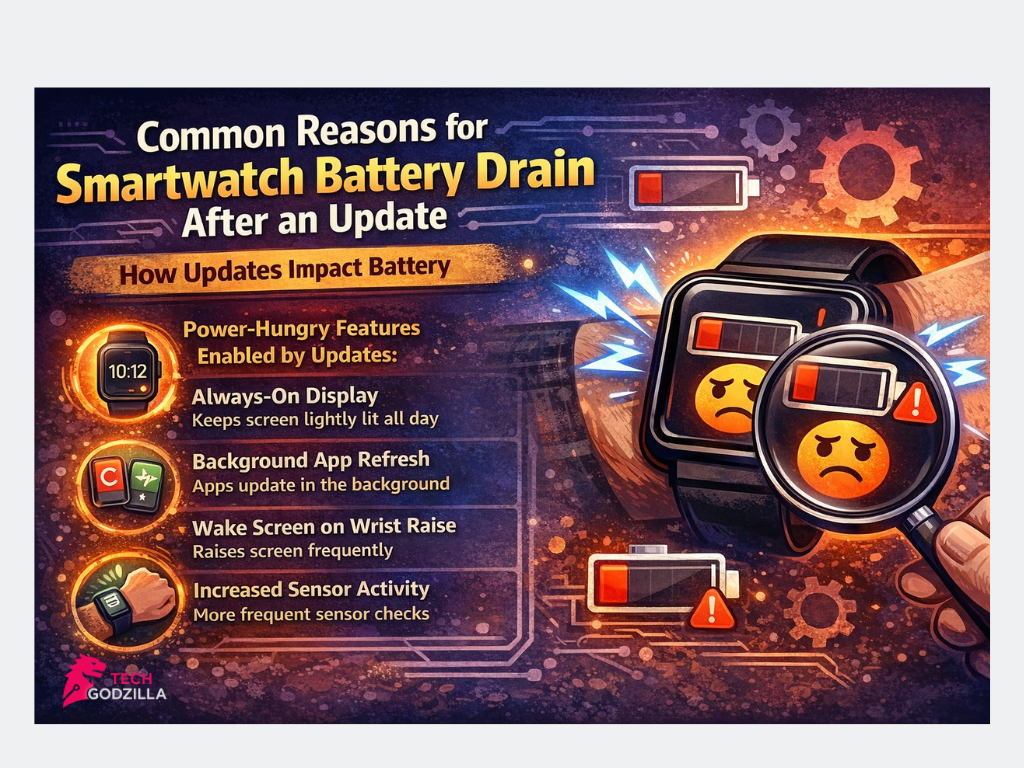
Here are a few common culprits:
- Always-On Display: This feature keeps your watch screen lightly illuminated at all times so you can see the time. It’s convenient, but it’s a constant power draw. An update might have turned this feature on or increased its brightness.
- Background App Refresh: This allows apps to update their content in the background, so they’re ready the moment you open them. While useful, having too many apps refreshing can quietly kill your battery.
- Wake Screen on Wrist Raise: Every time you lift your wrist, the screen turns on. If this setting is too sensitive, your watch screen could be turning on dozens of extra times per day, especially during a workout or a walk.
- Increased Sensor Activity: Updates can enhance health tracking, leading to more frequent heart rate monitoring or other sensor checks, which consumes more energy.
For instance, a friend recently noticed his Apple Watch battery dies quickly after the latest update. He discovered that the new software had enabled background refresh for nearly all his apps. Once he disabled it for non-essential ones, his battery life returned to normal.
Understanding these causes is the first step. Now, what can you do to fix it?
How to Fix Smartwatch Battery Draining Fast After Software Update (4 Steps)
Now that you know what might be causing the wearable battery drain issue, it’s time to take action. The good news is that you can fix most of these problems by adjusting a few settings. You don’t need to be a tech expert. These steps are simple and effective.
Step-by-Step Guide to Optimize Battery Settings
Let’s go through a checklist of quick fixes that can make a huge difference. While the exact steps might vary slightly between an Apple Watch and a Samsung smartwatch, the principles are the same.
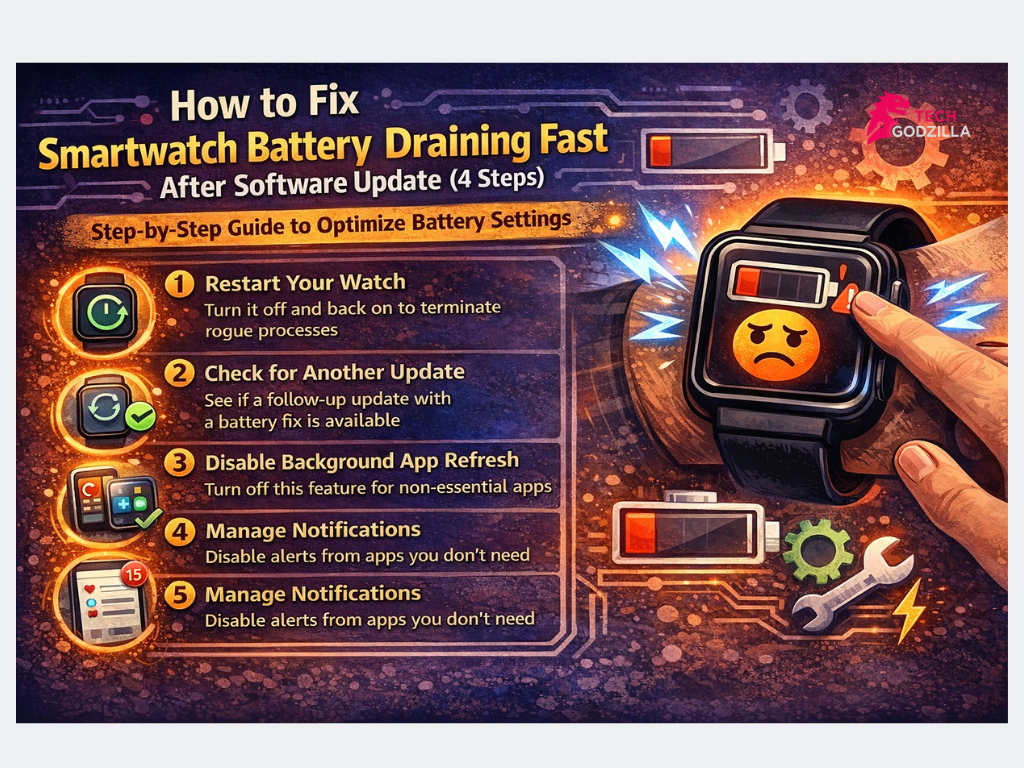
- Restart Your Watch: This is the oldest trick in the book for a reason. A simple restart can end any rogue processes that might have started after the update and are hogging your battery. Turn your watch off, wait a minute, and turn it back on.
- Check for Another Update: Sometimes, a software update has a known bug that causes battery drain. Manufacturers often release a smaller follow-up patch quickly to fix it. Check your watch’s settings to see if another update is available.
- Disable Background App Refresh: Go into your watch settings (or the companion app on your phone) and find the “Background App Refresh” option. Go through the list and turn it off for any app you don’t need to be constantly updated. Be ruthless—do you really need your weather or news app refreshing every hour?
- Manage Notifications: Every notification that lights up your screen and makes your watch vibrate uses a bit of power. Taming your notifications not only saves battery but also reduces distractions. Turn off alerts from apps you don’t care about.
Making these changes should already give you a noticeable improvement in your smartwatch’s all-day battery life.
Adjusting Features Like Screen Brightness and Motion Settings
If you’re still experiencing issues, it’s time to look at your display and visual settings. The screen is one of the biggest power consumers on any device.
- Adjust Screen Brightness: A brighter screen uses more power. Go into your display settings and lower the brightness to a comfortable but not maximum level. Many watches also have an auto-brightness setting that can help.
- Use a Dark Watch Face: If your smartwatch has an OLED display, like an Apple Watch or many Samsung models, using a watch face with a black background can save a significant amount of power. On an OLED screen, black pixels are simply turned off, meaning they use no energy. A colorful, animated watch face, on the other hand, is a battery hog.
- Turn Off Always-On Display: This is one of the most effective ways to solve an Apple Watch battery draining fast issue. If you don’t need to see the time at a glance without raising your wrist, turn this feature off. You’ll add hours to your battery life.
- Reduce Motion Setting: The animations and visual effects in your watch’s interface make it feel fluid, but they also use processing power. Most smartwatches have a “Reduce Motion” setting in the accessibility options. Turning this on will make the interface simpler but more energy-efficient.
Don’t worry if these settings seem overwhelming. Just trying one or two of these Apple Watch power saving tips can solve your smartwatch battery life improvement woes.
Wondering if there’s a deeper issue with the battery itself? Let’s explore how to check its health.
How to Check and Improve Your Smartwatch’s Battery Health
If you’ve tried adjusting your settings and the smartwatch battery draining fast issue persists, you might start to worry about the battery itself. Is it getting old? Is there a hardware issue? Fortunately, most modern smartwatches provide tools to check on your battery health.
A lithium-ion battery, like the one in your smartwatch, naturally degrades over time. Each charge cycle wears it down a tiny bit. While this is a slow process, understanding your battery’s condition can provide peace of mind or tell you if it’s time for a replacement.
Using Built-In Tools to Monitor Battery Health
Checking your battery’s health is straightforward on most devices.
- For Apple Watch: Go to Settings > Battery > Battery Health. Here, you’ll see the “Maximum Capacity.” A brand-new watch will show 100%. If the capacity is significantly lower, say below 80%, it means the battery can’t hold as much charge as it used to. This is a common Apple Watch battery health issue on older devices.
- For Samsung Galaxy Watch: You can check this through the Galaxy Wearable app on your phone. Go to Watch settings > Battery. While it doesn’t always show a percentage like Apple, it provides diagnostics and battery usage data that can help identify if a specific app is the problem.
If your battery health is low, that could be the primary reason for the poor performance, which was only made more noticeable by the recent software update.
Tips to Extend Battery Life Long-Term
Whether your battery is new or old, good charging habits can prolong its lifespan. Avoid these common mistakes:
- Don’t Drain to 0% or Charge to 100% All the Time: Lithium-ion batteries are happiest when they are kept between 20% and 80%. Constantly draining the battery completely or leaving it on the charger for hours after it hits 100% can stress it and accelerate its decline.
- Avoid Extreme Temperatures: Leaving your watch in a hot car or out in the freezing cold can permanently damage the battery’s capacity.
- Use the Right Charger: Stick with the official charger that came with your watch or a reputable third-party brand. Cheap, uncertified chargers can deliver inconsistent power, which is bad for your battery.
By following these tips for battery optimization, you can ensure your watch’s power source stays healthy for as long as possible.
But what about those times when you need your watch the most, like during a workout?
Preventing Battery Drain During Workouts and GPS Usage
For many, a smartwatch is an essential fitness tracker. You use it to track your runs, monitor your heart rate, and listen to music. But activities that use GPS tracking and continuous heart rate monitoring are some of the most power-intensive tasks your watch can perform. It’s no surprise that your battery can drain quickly during a long workout.
A common scenario you head out for a long run, and your watch dies halfway through, losing all your progress. It’s incredibly frustrating. However, with a few tweaks, you can make sure your watch has the stamina to keep up with you.
Enabling Workout Power-Saving Mode
Most smartwatches come with a workout power saving mode. This feature is designed specifically to extend battery life during exercise.
- On Apple Watch, you can enable “Power Saving Mode” under Watch app > Workout. This turns off the always-on display during workouts and can also limit cellular and Wi-Fi connections. For walking and running workouts, it even reduces the frequency of GPS and heart rate readings.
- On Samsung and other Wear OS watches, similar modes exist. They might dim the screen, reduce sensor polling, or disable non-essential features to get you through your activity.
Activating this mode before you start a long workout is a game-changer for battery endurance.
Managing GPS and Heart Rate Monitoring for Longer Battery Life
While workout mode helps, you can also be more strategic about how you use certain features.
- GPS Tracking: If you’re running on a treadmill or working out indoors, you don’t need GPS. Make sure it’s turned off for indoor workout profiles. If you’re running outside but also have your phone with you, some watches can use your phone’s GPS, which saves the watch’s battery.
- Heart Rate Monitoring: Continuous heart rate monitoring is great for tracking your effort, but it’s a constant drain. If you’re just going for a casual walk, you may not need it running the entire time. Some workout modes will let you adjust the frequency of readings.
- Connectivity: Turn off Bluetooth and Wi-Fi connectivity if you don’t need them. If you’ve downloaded a playlist directly to your watch, you don’t need it connected to your phone to listen to music.
By being mindful of these settings, you can finish your longest workouts with plenty of battery to spare.
Conclusion: Take Back Control of Your Smartwatch Battery
Experiencing rapid battery drain after a software update is frustrating, but it’s a solvable problem. As we’ve seen, the issue is rarely a sign of a failing device. Instead, it’s usually a matter of new features and settings consuming more power behind the scenes.
By taking a few moments to restart your watch, adjust your display settings, and manage background processes, you can quickly restore your smartwatch’s battery life. Using tools like battery saver mode during long workouts and practicing good charging habits will ensure your watch performs reliably for years to come.
Don’t let a battery issue keep you from enjoying your wearable. You are in control. A few small adjustments are all it takes to go from worrying about your battery to confidently using your smartwatch all day long.
FAQs: Smartwatch Battery Draining Fast After Software Update
You’ve got questions, and we’ve got answers. Here are some of the most common queries about smartwatch battery drain, addressed directly.
Why is my battery dying so fast after the update?
A software update can cause temporary battery drain as your watch re-indexes files. More commonly, it enables new or existing features like background app refresh and always-on display, which use more power than you’re used to.
Can software updates cause battery drain?
Yes, absolutely. It’s one of the most common reasons for sudden battery drain. This can be due to a bug in the new software or because of new default settings that are more power-intensive.
Why is my smartwatch losing battery so fast?
Besides a recent update, other culprits include a high screen brightness setting, too many apps refreshing in the background, a watch face with lots of color and animation, or frequent use of GPS and heart rate sensors.
Why is my Samsung battery draining so fast all of a sudden?
If your Samsung watch’s battery life suddenly drops, a recent firmware update is the most likely cause. Check for power-saving modes, disable the always-on display, and limit background activity for apps through the Galaxy Wearable app.
Does a software update affect battery life on Samsung?
Yes. Just like on an Apple Watch, a software update on a Samsung watch can change settings and processes that lead to increased battery consumption. It’s always a good idea to review your settings after any major update.
How to fix a quickly draining battery?
To fix a quick-draining battery, start by restarting your watch. Then, lower your screen brightness, use a simple and dark watch face, turn off the always-on display, and limit background app refresh and notifications. If the problem persists, check your battery’s health. In extreme cases, a power reserve mode can be a lifesaver.